



Overview
Airtable lets your agent work with customer records stored in a base you manage. The agent can find a record by email address or reference number, list records and check the status of a request. With extra configuration, it can also register a customer, update the details you allow and log a request.
Cevanos supplies seven capabilities: four reads and three does. None of them is switched on when you connect; you choose which ones your agent gets.
The journey at a glance
- 1Find AirtableOpen Integrations, search for Airtable and click Connect.
- 2Connect AirtableEnter the token, base ID and table, then Verify & connect.
- 3Check the Airtable pageConfirm the card shows Connected and the right base.
- 4Choose what it can doTick Workspace and This agent, then Save capabilities.
- 5Set up Actions and approvalsSwitch on the Airtable actions and choose Wait for approval.
- 6Try itAsk as a matched test customer, starting with a read.
- 7Review pending approvalsApprove the test action in Operations → Pending actions.
Before you start
You need a base that holds customer information. A simple Customers table can have Email, Name, Phone, Address and Reference columns. To track requests, you can also keep a Requests table with Email, Type, Details, Status and Request ID. These are examples; use the exact column names from your own base.
Prepare Airtable
- 1Open your Airtable base and copy the base ID from its URL. It begins with “app”. Do not use the base's display name.
- 2Write down the exact name of the customer table, including spaces and capital letters, and note which column holds the customer's email (Cevanos assumes Email).
- 3Open airtable.com/create/tokens and create a personal access token. Restrict it to the base you are connecting.
- 4Grant data.records:read for lookups. If the agent will register customers, edit details or log requests, also grant data.records:write.
- 5Copy the token when Airtable shows it and keep it somewhere secure.
Read or write
Read access is enough for lookups. The three does capabilities also need write scope, their Cevanos configuration and any approvals you require.
Keep it private
Never put a real personal access token, customer email address or full base ID in a shared screenshot or training material.
Step 1
Find Airtable
- 1Open the agent you want to set up and click Deployment → Integrations.
- 2Type Airtable in the search box, or look under Productivity.
- 3Check the badge on the card. Available means it is not connected yet. Click Connect.
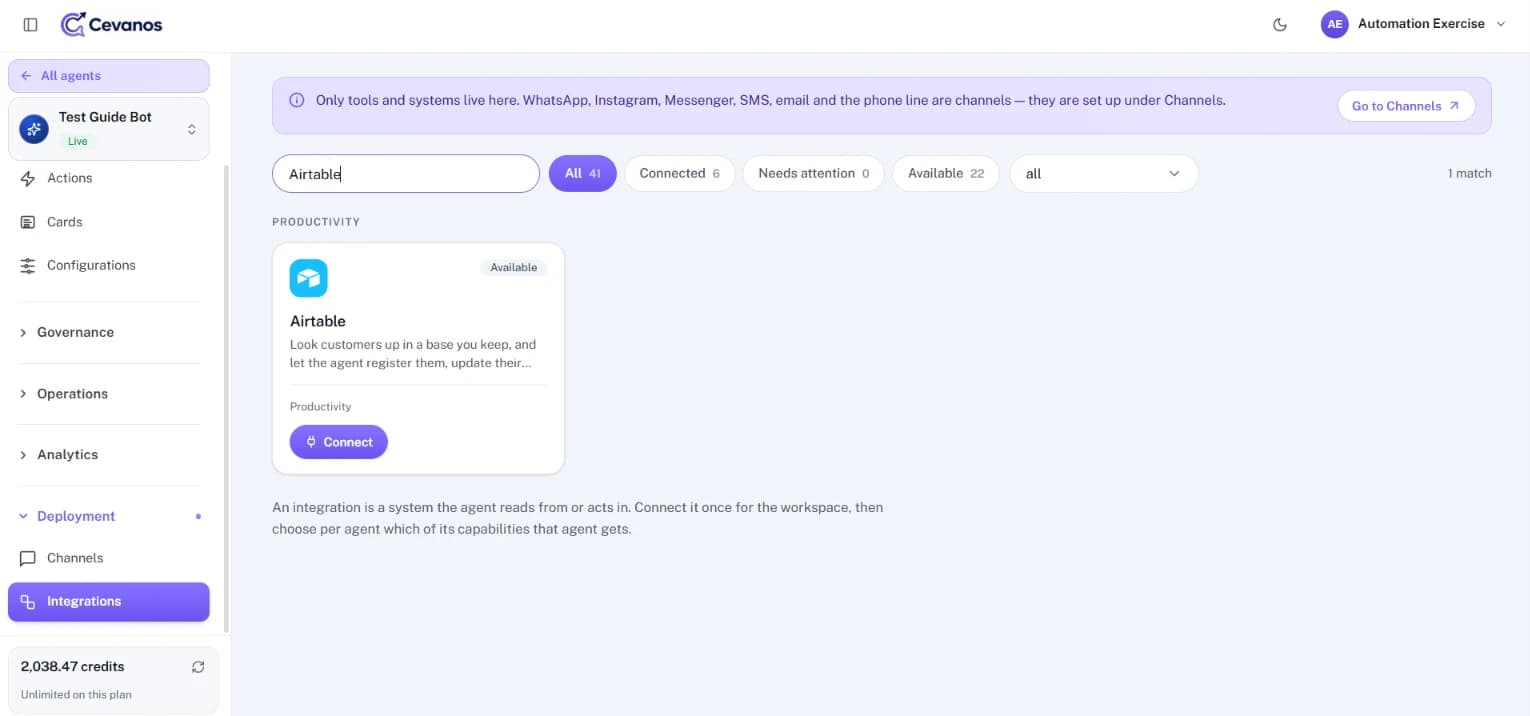
Result
The three-stage Connect Airtable wizard opens.
Step 2
Connect Airtable
2a. Before you start
The first screen explains that Cevanos checks your details against Airtable before it saves anything. Click Get started.
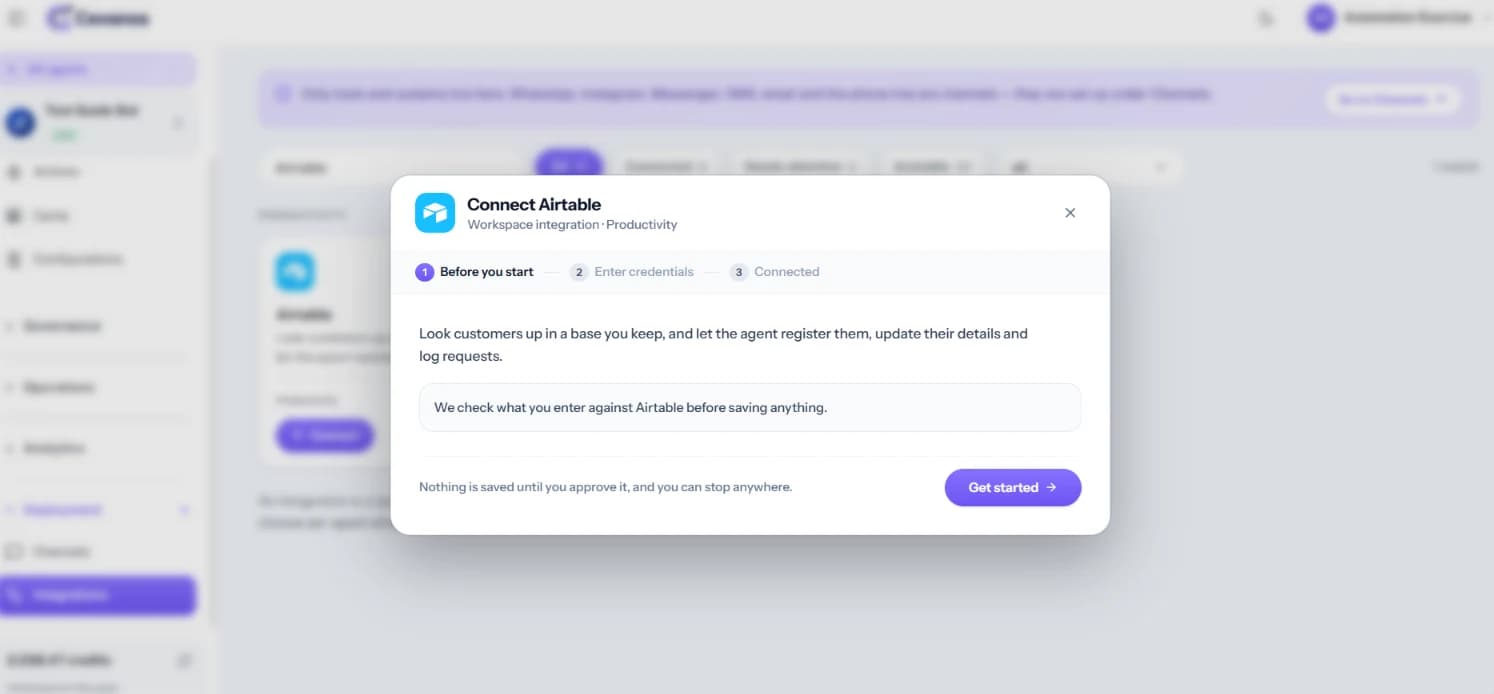
2b. Enter connection details
Fill in the required fields first, then scroll inside the pop-up for the optional ones. Only set optional columns that exist in your base. Column names must match your base exactly, including capital letters and spaces.
| Field | Required | What to enter |
|---|---|---|
| Personal access token | Yes | The token you created in Airtable. It is treated as a secret. |
| Base | Yes | The base ID beginning with “app”, copied from its URL. |
| Table | Yes | The exact customer table name, for example “Table 1”. |
| Email column | No | The customer email column. Defaults to Email. |
| Reference column | No | A column such as Order number or Member ID, used for reference lookups. |
| Columns filled when registering | No | Comma-separated columns, for example “Name, Phone”. Empty turns registration off. |
| Columns a customer may change | No | Comma-separated columns, for example “Phone, Address”. Empty turns updates off. |
| Requests table | No | A table used for requests and status checks. |
| Requests email column | No | The email column in the Requests table. Defaults to Email. |
| Columns filled on a new request | No | Columns such as Type and Details. Empty turns request logging off. |
| Request ID column | No | The column holding a unique request reference. Defaults to Request ID. |
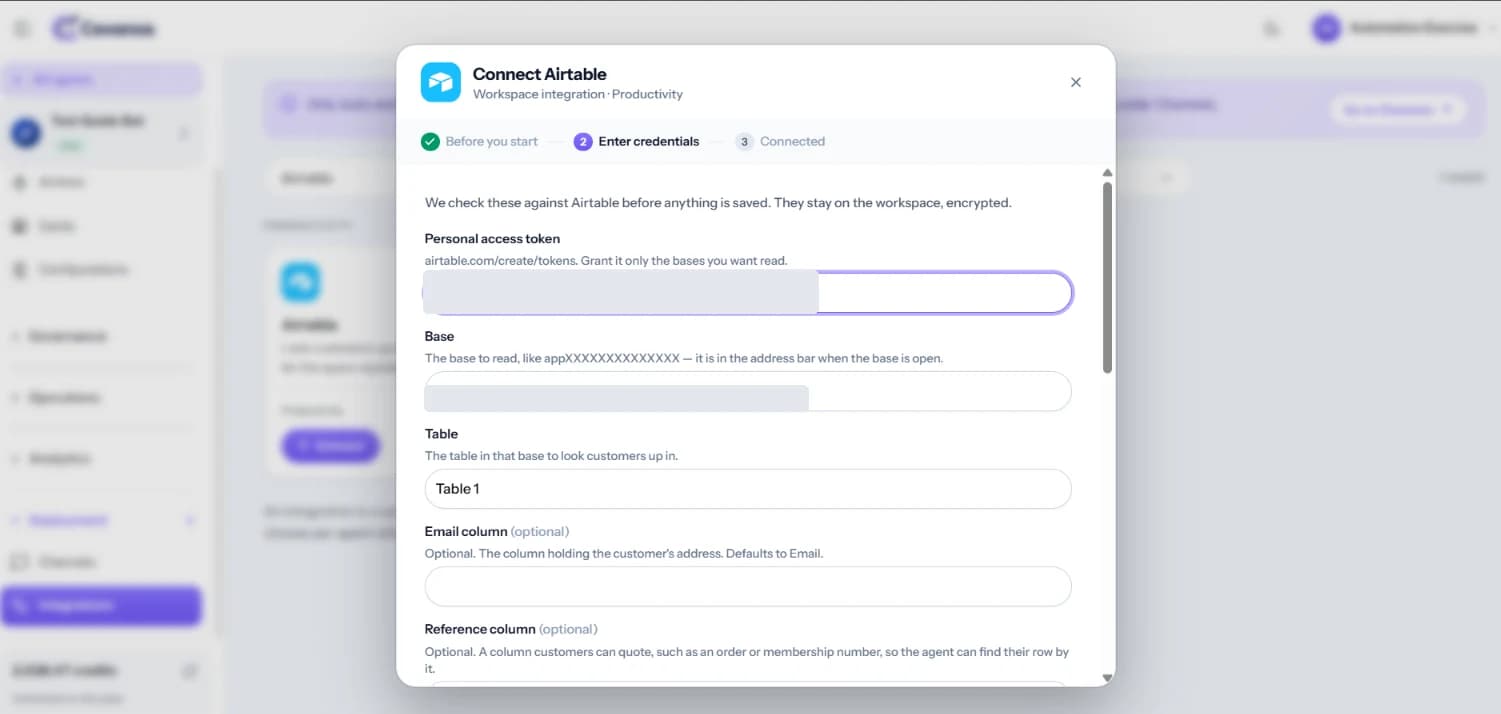
- 1Enter your token, base ID and table name, and set any optional fields you need.
- 2Click Verify & connect.
If it fails
Check that the token has access to the base, that the table name is spelled exactly, and that the token has the right scopes.
2c. Connected
- A green “Airtable is connected” message confirms the workspace connection. It does not mean any capability is switched on.
- If Airtable was connected before, Cevanos may offer to switch its previous capabilities back on. Review the choice before you accept it.
- Click Choose what it can do to go straight to Step 4, or Back to integrations.
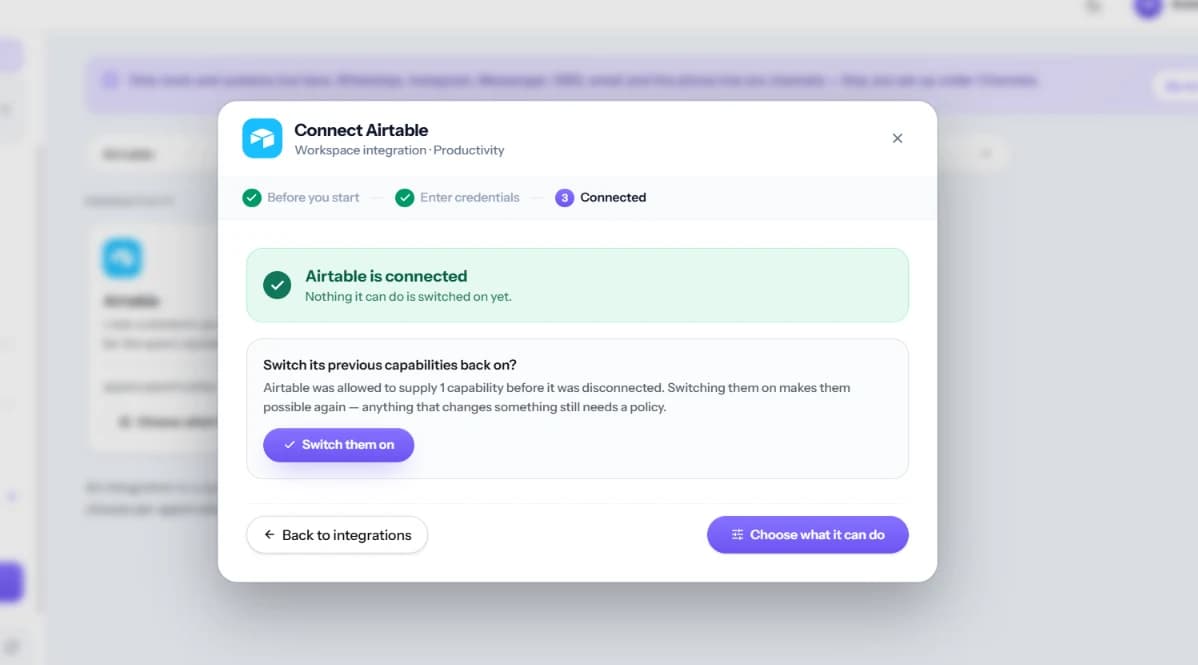
Result
Airtable is connected for the workspace, but nothing it can do is switched on yet.
Step 3
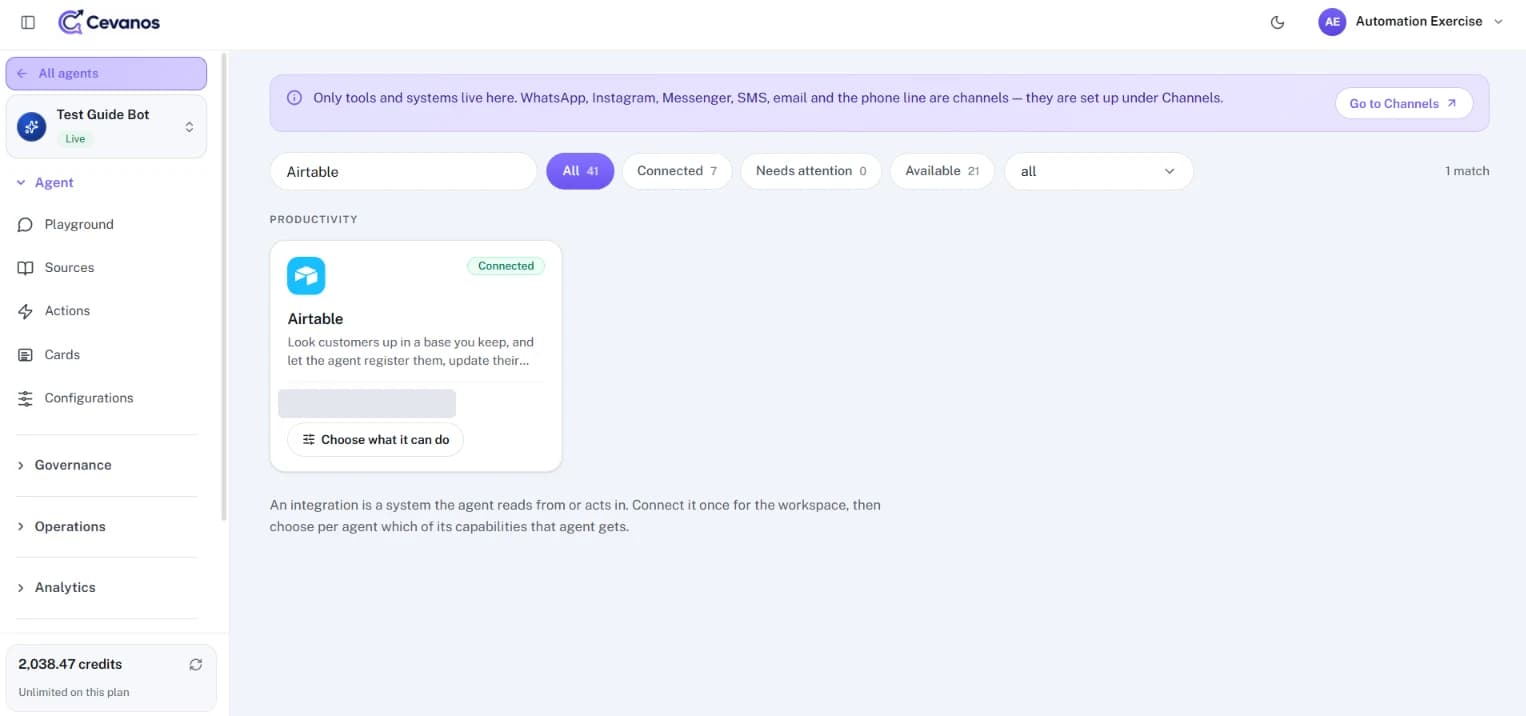
Check the Airtable page
- 1Go back to Integrations and search for Airtable.
- 2Check that the card shows Connected and the base you meant to connect.
- 3Click Choose what it can do.
Result
You have confirmed Airtable is connected to the right base.
Step 4
Choose what it can do
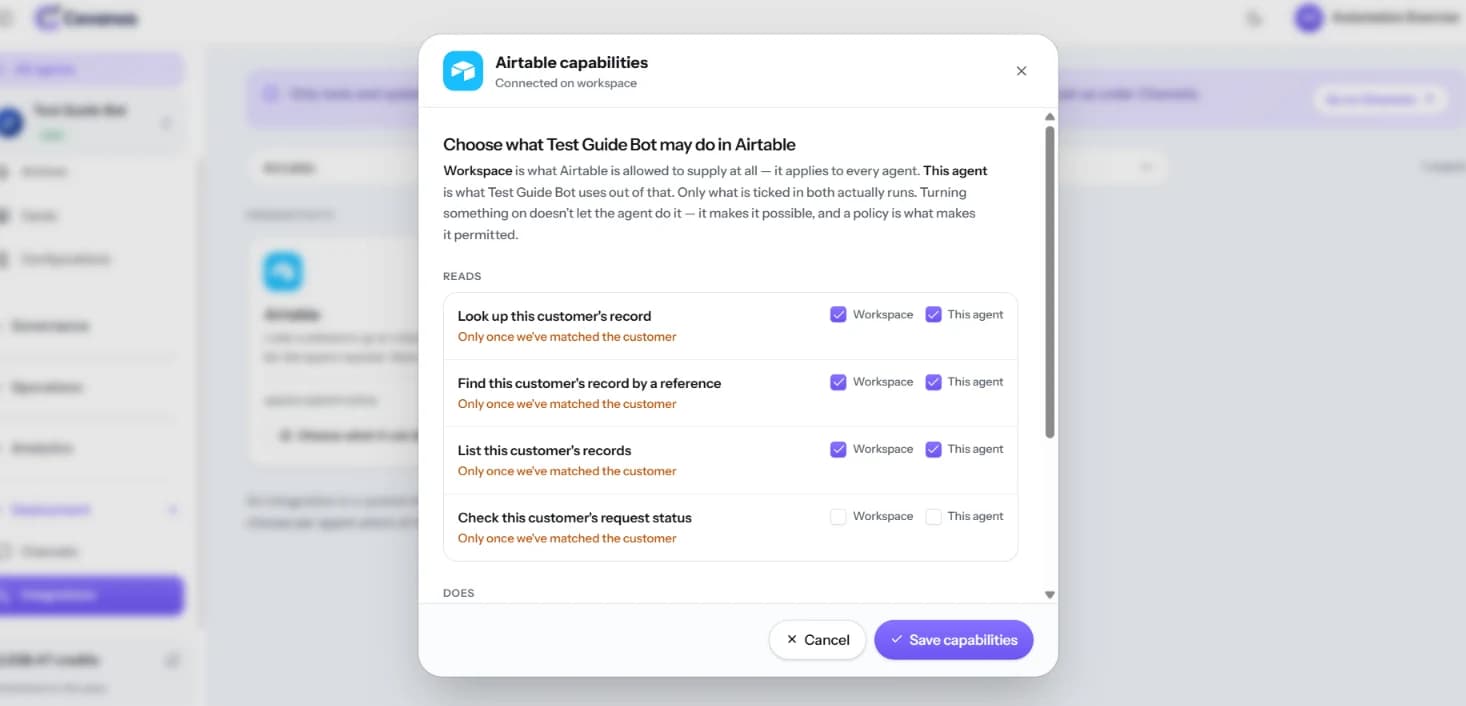
Each capability has two checkboxes. Workspace controls what Airtable may supply to any agent in the workspace, and This agent controls what the agent you are setting up receives. A capability is available only when both are ticked.
- 1Tick Workspace and This agent for each capability this agent should have.
- 2Click Save capabilities.
Identity
Every Airtable capability is about one customer. Cevanos must match the person to a customer record before it returns their records. Ticking a box does not get round Governance or customer matching.
Some capabilities need configuration
Reference lookups need a Reference column. Updates need Columns a customer may change. Request logging needs a Requests table and Columns filled on a new request. The token's read and write scopes must also cover what you tick.
Result
The capabilities you ticked in both columns are available to this agent.
Step 5
Set up Actions and approvals
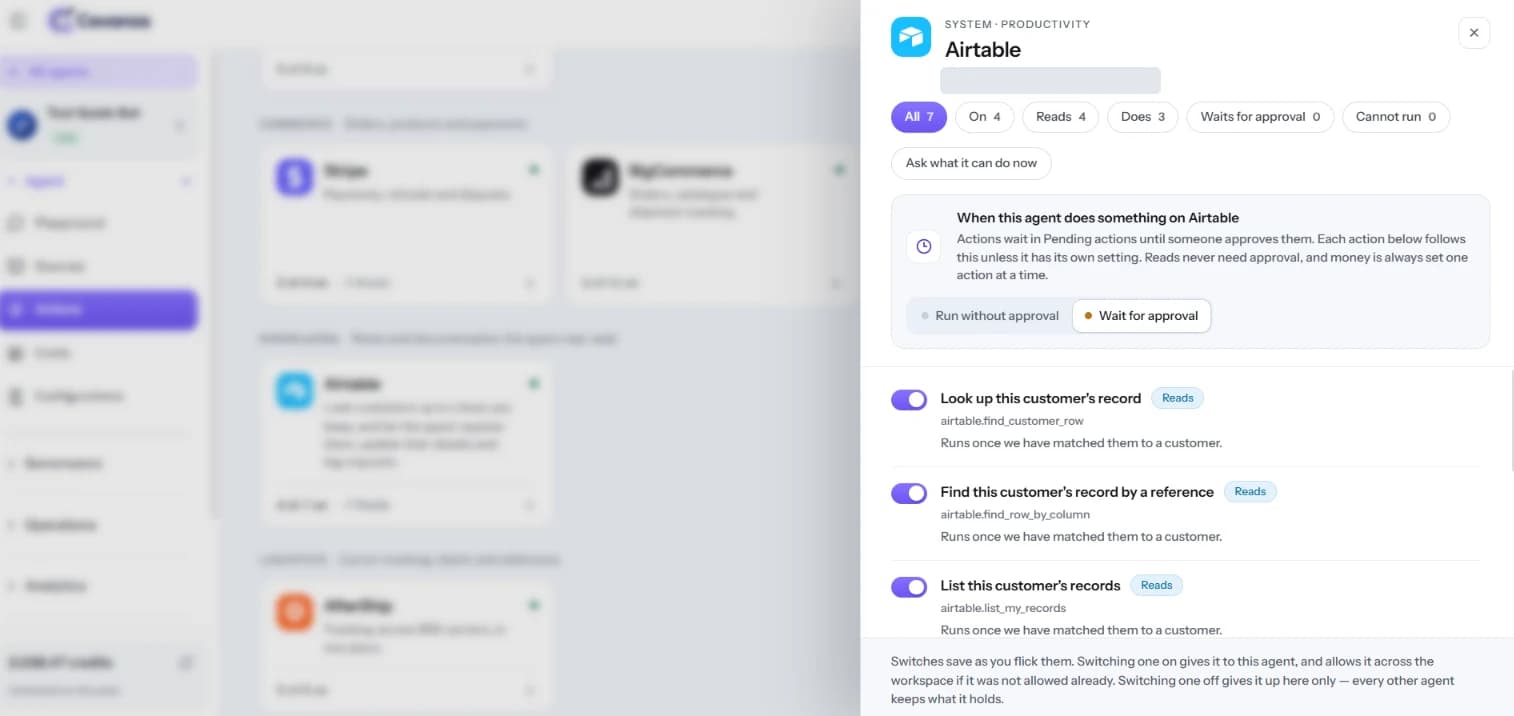
- 1In your agent's left sidebar, open Actions and click the Airtable card under Productivity.
- 2Use the All, On, Reads, Does, Waits for approval and Cannot run filters to see what is available.
- 3For actions that change Airtable records, choose Run without approval or Wait for approval. While you test, Wait for approval is the safer choice.
- 4Check each does action: any one can have its own setting that overrides the default. Review them before you deploy the agent.
Where approvals happen
Actions sets whether approval is needed. Operations → Pending actions is where an authorised reviewer handles the requests. Reads never need approval.
- Reads run immediately and need no approval.
- Actions marked Matched customer run only after the customer's email or phone is matched to a customer.
- Actions marked Confirmed customer also need a verification code: the customer gets a 6-digit code by email, valid for 10 minutes and usable once. A newer code replaces an older one. Once the code is accepted, the customer may need to send one more message (for example “yes”) before the action is proposed.
- Actions that change something wait in Operations → Pending actions until a team member approves them.
- Approving in Pending actions can reload the Playground and reset its Test as email, so open Pending actions in a second browser tab while you test.
Result
You know which Airtable actions this agent can run, and which ones wait for approval.
Step 6
Try it
Open Agent → Playground and set Test as to a test customer whose email matches a row in your customer table. Avoid changing real customer data while you test.
| Ask | What to check | Approval needed |
|---|---|---|
| “What contact details do you have for me?” | Only the matched customer's record is returned. | No |
| “Can you find my record using membership number M-1001?” | The record is found through the Reference column. | No |
| “Register me as a new customer.” | A new row is created with only the registration columns you allowed. | If set to wait |
| “Please change my phone number to [test number].” | Only a column a customer may change is updated. | If set to wait |
| “Log a request about my booking.” | A new entry appears in the Requests table. | If set to wait |
Result
After any approval, the new or changed record appears in Airtable as expected.
Step 7
Review pending approvals
- 1If an action waits for approval, open Operations → Pending actions.
- 2Review the request and approve it.
- 3Check the expected change directly in Airtable.
Result
You have seen a change go through approval and land in your base.
Reference
What Airtable can do
Airtable supplies seven capabilities: four reads and three does. Every one is about the matched customer.
7 capabilities · 4 reads · 3 that change something
- Matched customer
Look up this customer's record
Get the matched customer's details.
airtable.find_customer_row - Matched customer
Find this customer's record by a reference
Find a record using the configured order or member reference.
airtable.find_row_by_column - Matched customer
List this customer's records
List the records that belong to the matched customer.
airtable.list_my_records - Matched customer
Check this customer's request status
Find a request's status in the configured Requests table.
Register this customer
Create a customer record using the allowed registration columns.
Update this customer's details
Update only the columns you allowed customers to change.
Log a request for this customer
Create an entry in the configured Requests table.
Good to know
The three does capabilities need data.records:write on the token as well as their optional columns.
Troubleshooting
| Problem | What to check |
|---|---|
| Verify & connect fails | Check the token, that it has access to the base, the base ID and the exact table name. |
| Customer record not found | Check the email column setting and that the person has been matched to a customer. |
| Reference lookup is unavailable | Set the Reference column in the connection settings. |
| Reads work but changes fail | Check the token has data.records:write and that the relevant optional columns are set. |
| A capability cannot run | Check Workspace and This agent, then the action's switch on Actions and any Governance rules that apply. |
| No pending request appears | Check that the action is a does action and that its approval setting is Wait for approval. |
Optional
Disconnect Airtable
- 1Open the Airtable page and find the Disconnect section.
- 2Confirm to remove the connection from Cevanos.
- 3To revoke the token itself, open airtable.com/create/tokens and delete it. Disconnecting in Cevanos does not revoke it.
Your data stays
Disconnecting does not delete any records in Airtable. To reconnect, repeat the connection steps.
Help from Airtable
Ready to connect Airtable?
Open your agent's Integrations and click Connect on the Airtable card.