



Overview
- Know who you are helping: find the matched customer and their associated company.
- Keep customer details up to date: create contacts, correct their name or phone number, or add a note when the action is authorized.
Not on by default
A connected Attio account does not automatically give every agent all actions. You choose the specific actions each agent can use after connecting.
The journey at a glance
- 1Find AttioOpen Integrations, search for Attio and click Connect.
- 2Connect AttioSign in to Attio, pick the workspace and approve access.
- 3Check the Attio pageSee the connection details and use Test connection.
- 4Set up Actions and approvalsSwitch on the Attio actions this agent needs and choose when they wait for approval.
- 5Try itAsk a read question in the Playground, then test a change.
- 6Review pending approvalsSee why approval was needed, then approve or reject in the Approval Queue.
Before you start
You need:
- An Attio workspace containing the people and companies you want the agent to use.
- An Attio account with permission to authorize access to that workspace.
- Record and note permissions in Attio for the capabilities you plan to enable.
Prepare Attio
- 1Sign in to Attio at app.attio.com.
- 2If you belong to more than one workspace, decide which one to connect to Cevanos.
- 3When Attio asks you to authorize Cevanos, check the selected workspace and the requested permissions before you go on.
No API key
This connection uses account authorization through sign-in. Do not create an API key or a personal access token for it.
Step 1
Find Attio
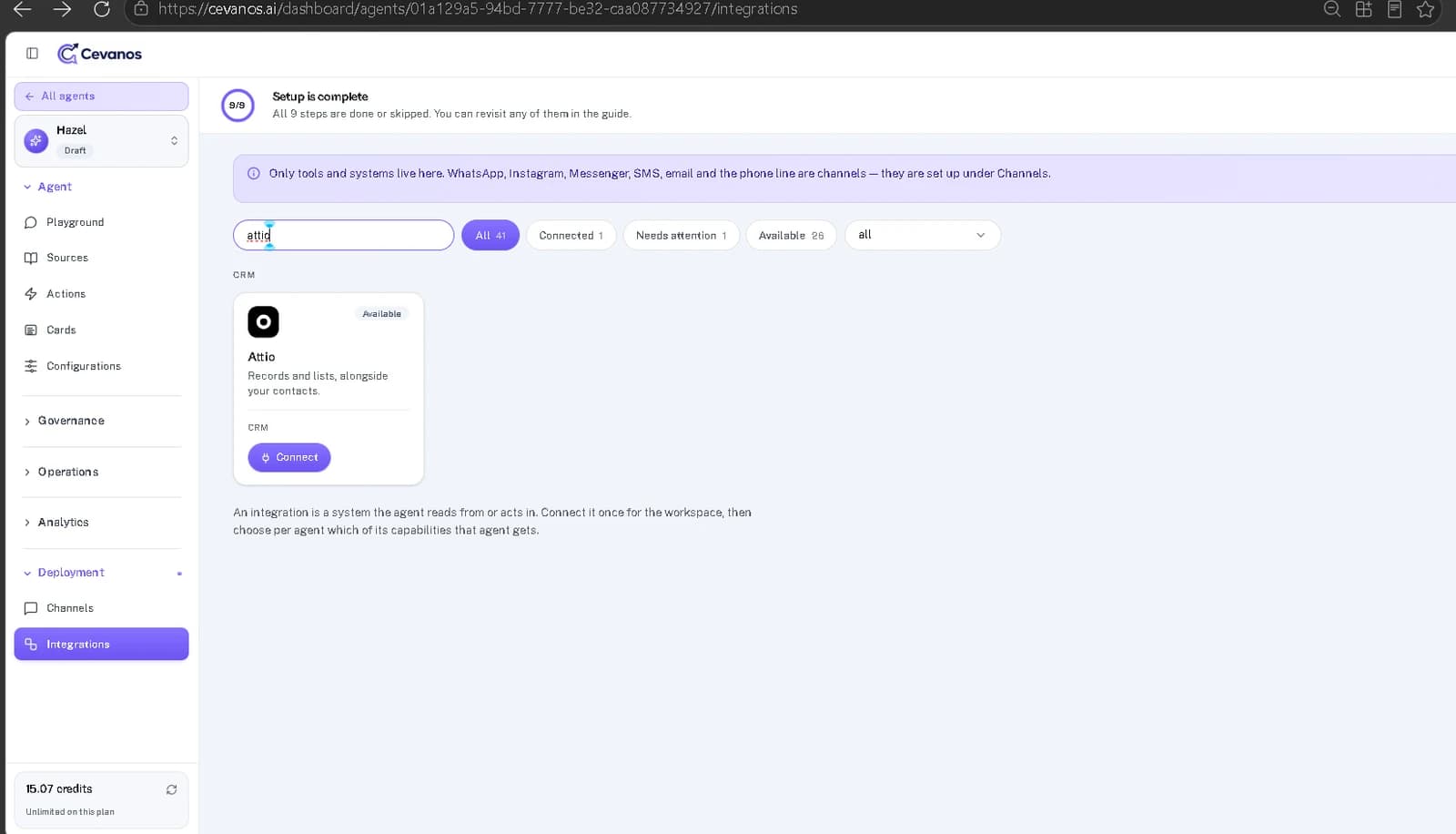
- 1In Cevanos, go to Agents and select the agent you want to set up.
- 2Under Deployment, open Integrations.
- 3Use the search box or the category filters to find Attio, under CRM.
Result
You are ready to connect. Click Connect on the Attio card.
Step 2
Connect Attio
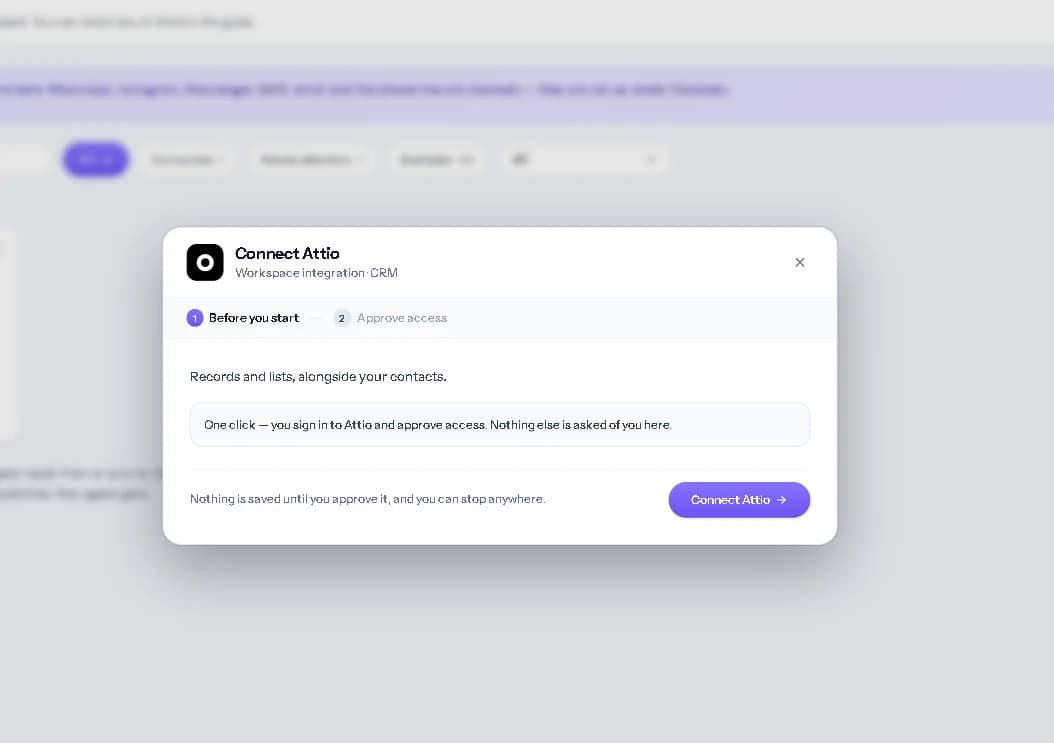
2a. Start the connection
The Connect Attio pop-up opens. Continue to the Attio sign-in and authorization page.
2b. Approve access in Attio
- 1Select the correct workspace if Attio asks you to choose one.
- 2Review the requested access and approve the connection.
2c. Connected
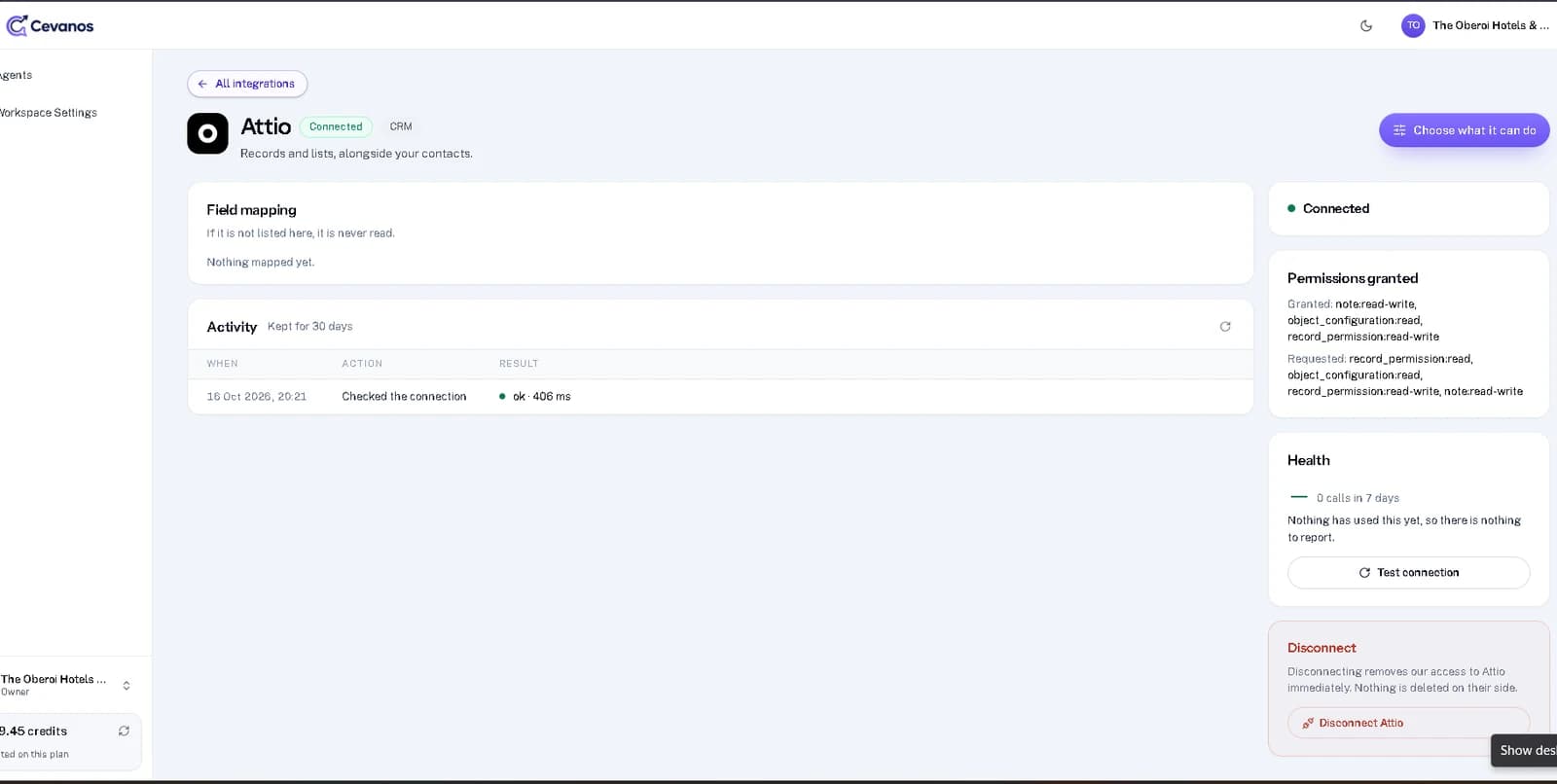
Return to Cevanos and check that Attio shows Connected.
Result
Attio is connected. Next, choose which actions each agent can use.
Step 3
Check the Attio page
- 1Open Agents → your agent → Deployment → Integrations.
- 2Click the connected Attio card to see the connection details and status.
- 3Click Test connection to check whether access is still working.
Result
You can confirm Attio is connected and still reachable.
Step 4
Set up Actions and approvals
Turn on the actions you need
- 1Go to Agents and select the agent you want to configure.
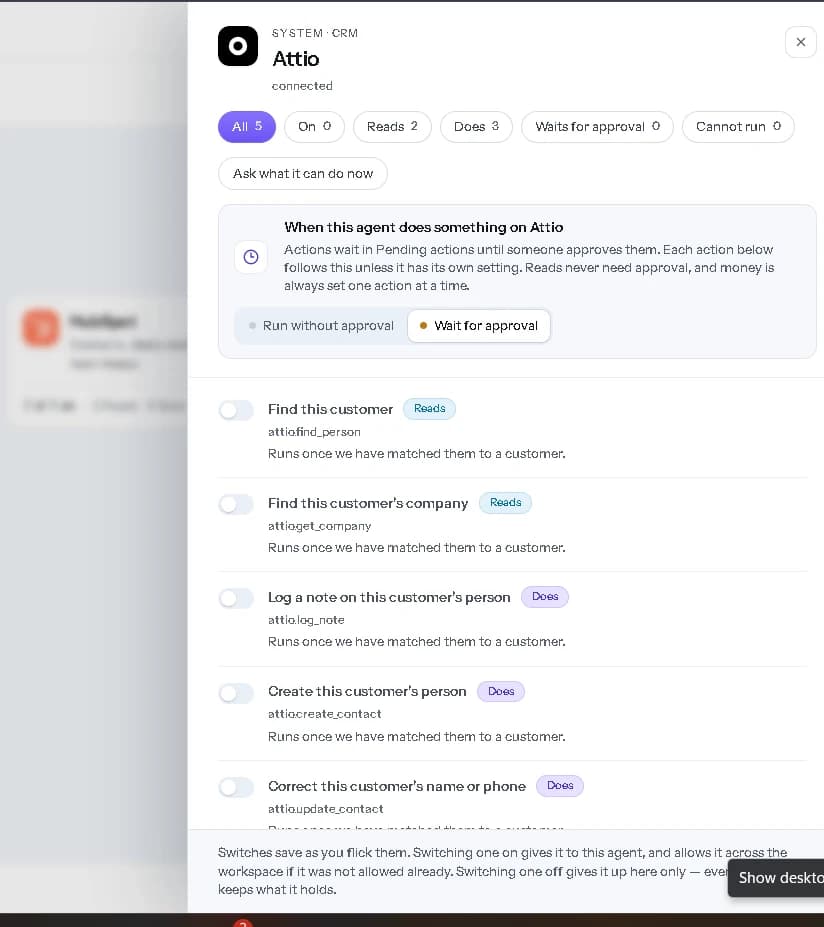
- 2Open the agent's Actions tab and click the Attio card.
- 3Turn on the actions the agent should be able to use. The switches save as you change them.
- 4Review the approval setting for any action that changes information in Attio.
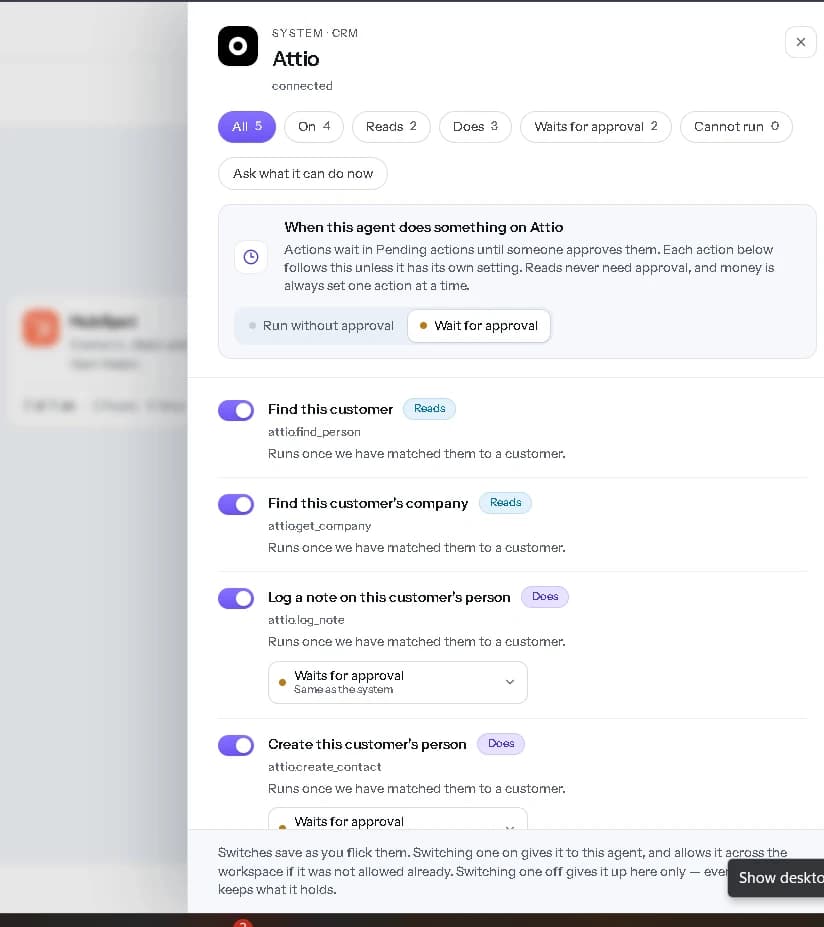
Choose when an action needs approval
- Run without approval: when the agent has enough information and the request passes the checks that apply, it carries out the action without waiting for a team member.
- Wait for approval: the agent prepares the action but does not carry it out yet. A team member with approval access approves or declines it. Waiting actions appear in Pending actions; policy-controlled requests can also appear in Governance → Approval Queue.
The Attio-wide setting applies to every action by default. On a specific change action, you can choose Same as the system, Run without approval or Wait for approval. Read actions do not need an approval setting.
Governance policies
Run without approval does not override an active Governance policy. A policy may require approval even when an action is switched on or set to run without approval.
Result
You know which Attio actions this agent can use and which wait for approval.
Step 5
Try it
- 1Open the agent's Playground.
- 2Use a test customer who exists in Attio when testing personal information.
- 3Ask a question that uses a read action first.
- 4For a change action, check whether the request ran, needs customer confirmation, or is waiting for approval.
- 5Check the outcome in Attio before treating the change as complete.
| Ask | What to check |
|---|---|
| “Can you check which company is linked to my profile?” | The agent matches the person's record and shows the associated company, as the connection permits. |
Result
Your agent answers from Attio for the matched customer.
Step 6
Review pending approvals
If Governance is set up for this agent, a policy may require approval for an Attio request.
- 1In the Playground, send a request that uses an enabled action.
- 2If the result says Approval required, open Governance → Monitoring & Audits to see the decision and the policy that applied.
- 3Open Governance → Approval Queue, select Pending and click Review beside the request.
- 4An authorized reviewer approves or rejects the proposed action. For an operation with several steps, one approval can cover all the steps shown.
- 5After approval, check the execution status and confirm the outcome in Attio.
Result
You know whether the change was made. Approval is not the same as successful completion.
Reference
What Attio can do
Each action is available separately. Every one works on the customer matched in the conversation.
5 capabilities · 2 reads · 3 that change something
- Matched customer
Find this customer
Finds the identified person's Attio record.
attio.find_person - Matched customer
Find this customer's company
Finds the company associated with the person.
attio.get_company
- Matched customer
Log a note on this customer's person
Adds a note to the customer's Attio person record.
attio.log_note - Matched customer
Create this customer's person
Creates a person record if a matching contact does not already exist.
attio.create_contact - Matched customer
Correct this customer's name or phone
Updates the matched customer's name or phone number without changing their email address.
attio.update_contact
Troubleshooting
| Problem | What to check |
|---|---|
| The agent uses the wrong workspace | Disconnect Attio and connect again, then select the intended workspace during authorization. |
| A customer cannot be found | Check that the customer's email address matches a record the connected account can access. |
| A note or update cannot be saved | Check the agent's action settings, any approval requirements, and the permissions granted to the Attio connection. |
Optional
Disconnect Attio
- 1Open Agents → your agent → Deployment → Integrations and click the Attio card.
- 2Click Disconnect to remove Cevanos's access to the account.
Your data stays
Disconnecting does not delete records in Attio.
Help from Attio
Ready to connect Attio?
Open your agent's Integrations and click Connect on the Attio card.