



Overview
HubSpot connects once to your Cevanos workspace. You do not need a separate HubSpot connection for every agent. Once it is connected, you choose what each agent may do with it.
- Find customer information: look up a matched customer's contact details and deals without changing anything in HubSpot.
- Take actions in HubSpot: let your agent prepare contact updates, support tickets, notes and deals, with approval when required.
Not on by default
A connected app is not automatically enabled for every agent. You choose the actions each agent can use after connecting HubSpot.
The journey at a glance
- 1Find HubSpotOpen Integrations, search for HubSpot and click Connect.
- 2Connect HubSpotClick Connect HubSpot, choose the account and click Connect app.
- 3Check the HubSpot pageSee the connection status, activity, permissions and Test connection.
- 4Set up Actions and approvalsSwitch on the HubSpot actions this agent needs and choose when they wait for approval.
- 5Try itSend a request in the Playground that uses a HubSpot action.
- 6Review pending approvalsSee why approval was needed, then approve or decline in the Approval Queue.
Before you start
You need:
- Access to your Cevanos workspace, with permission to manage the agent and its integrations.
- A sign-in to the HubSpot account you want to use, with the right to approve its requested access.
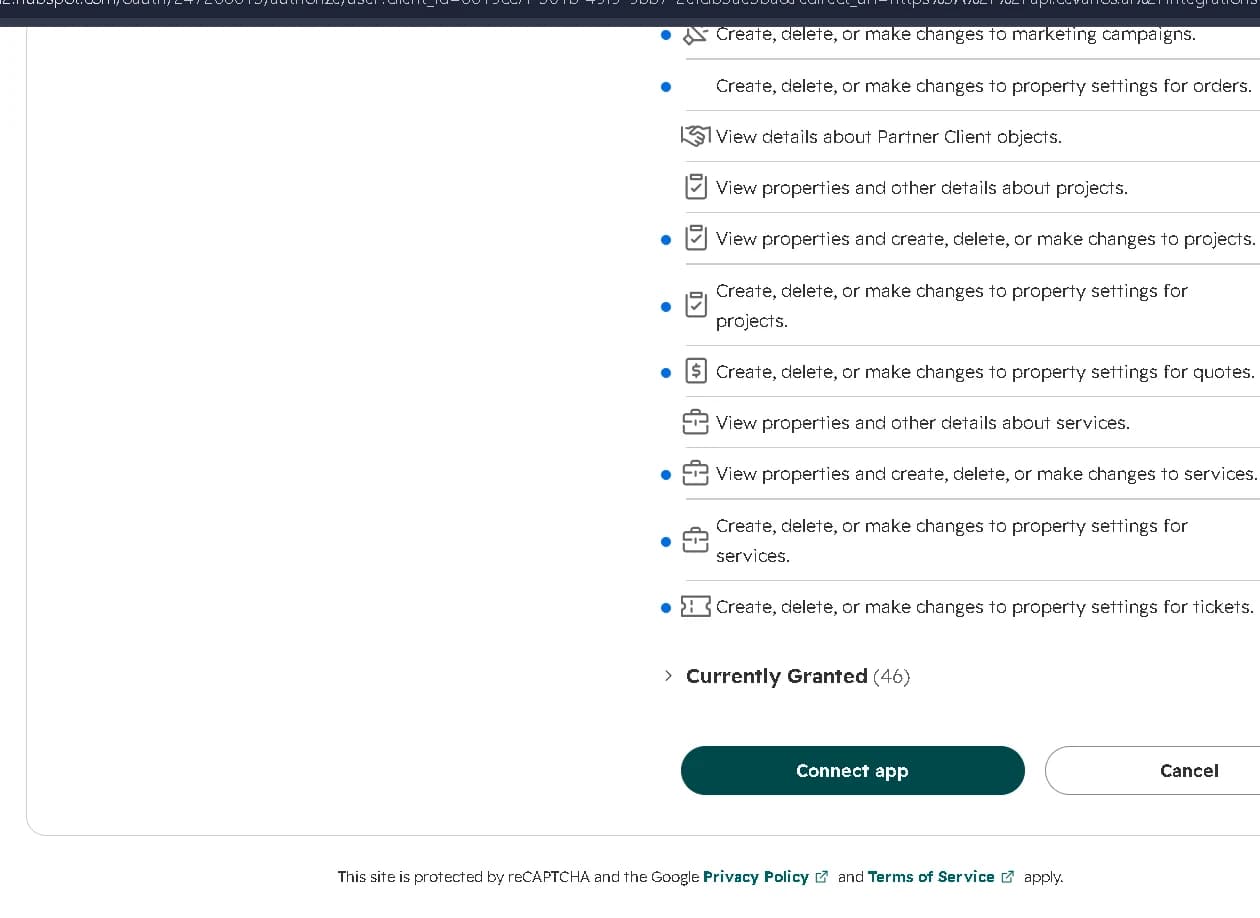
HubSpot shows the requested permissions while you connect, so you can review them before you continue.
Step 1
Find HubSpot
- 1Open your agent and go to Deployment → Integrations.
- 2Type HubSpot in the search box. It is in the CRM section.
- 3Click Connect on the HubSpot card.
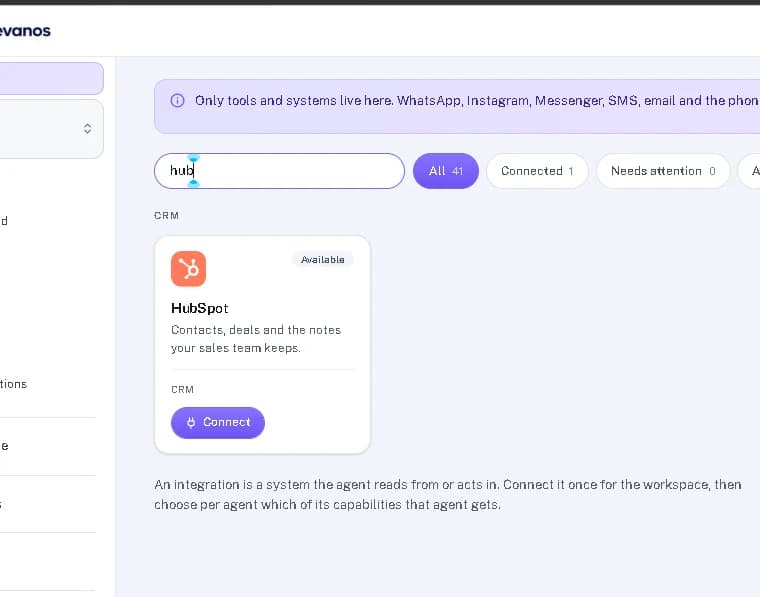
Result
The Connect HubSpot pop-up opens.
Step 2
Connect HubSpot
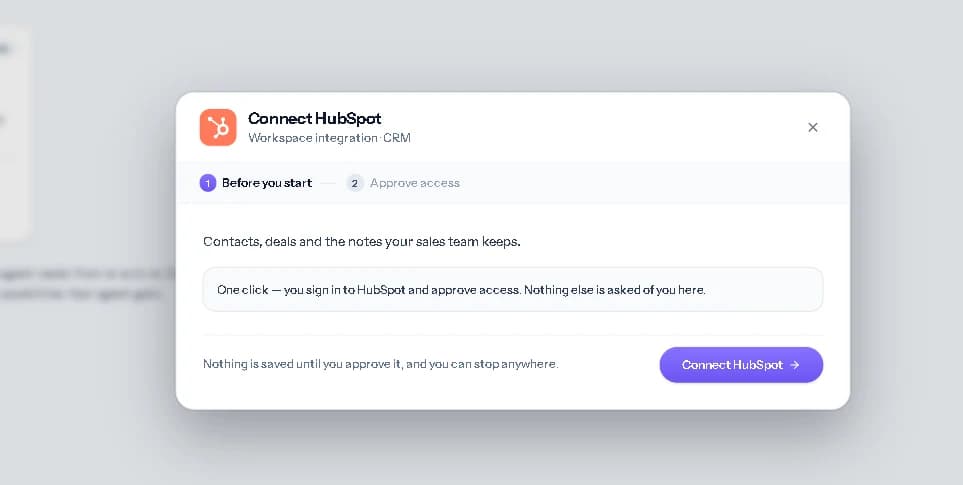
2a. Start the connection
In the Connect HubSpot window, click Connect HubSpot. Cevanos opens HubSpot's secure authorization page.
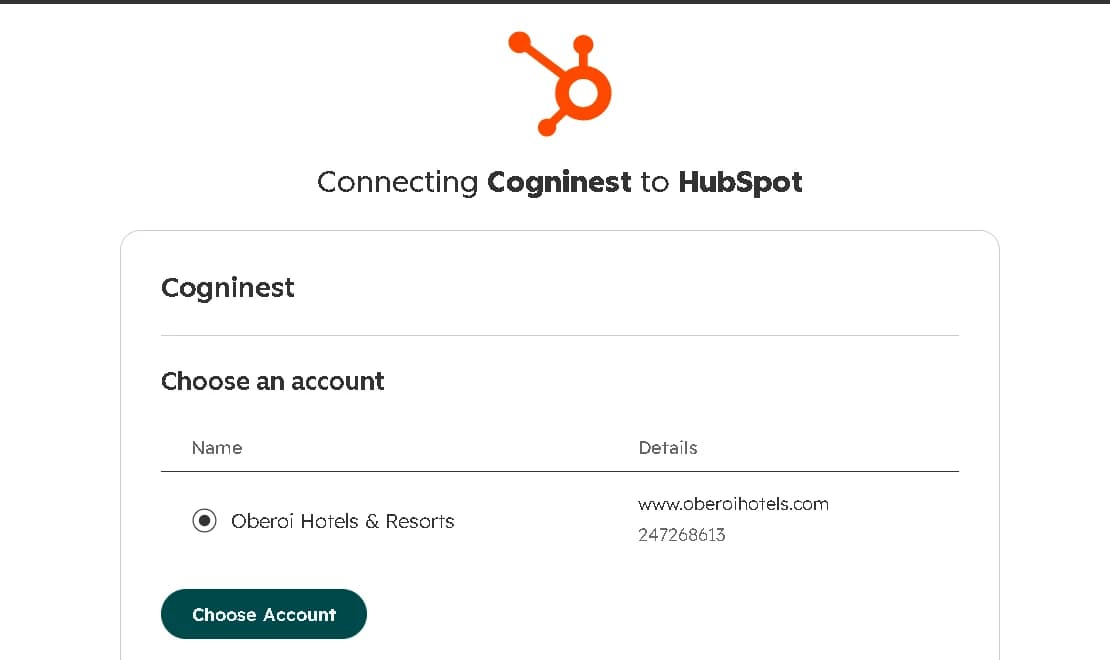
2b. Choose the HubSpot account
If HubSpot asks you to choose an account, select the one you want to connect and click Choose Account.
2c. Approve access
Review the permissions HubSpot requests. If you agree, click Connect app.
2d. Connected
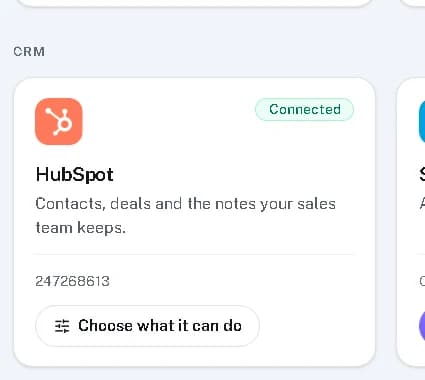
You return to Cevanos. When the connection is complete, the HubSpot card shows Connected.
Result
HubSpot is connected for the workspace. Next, choose what each agent can do with it.
Step 3
Check the HubSpot page
- 1Go to Deployment → Integrations and click the connected HubSpot card.
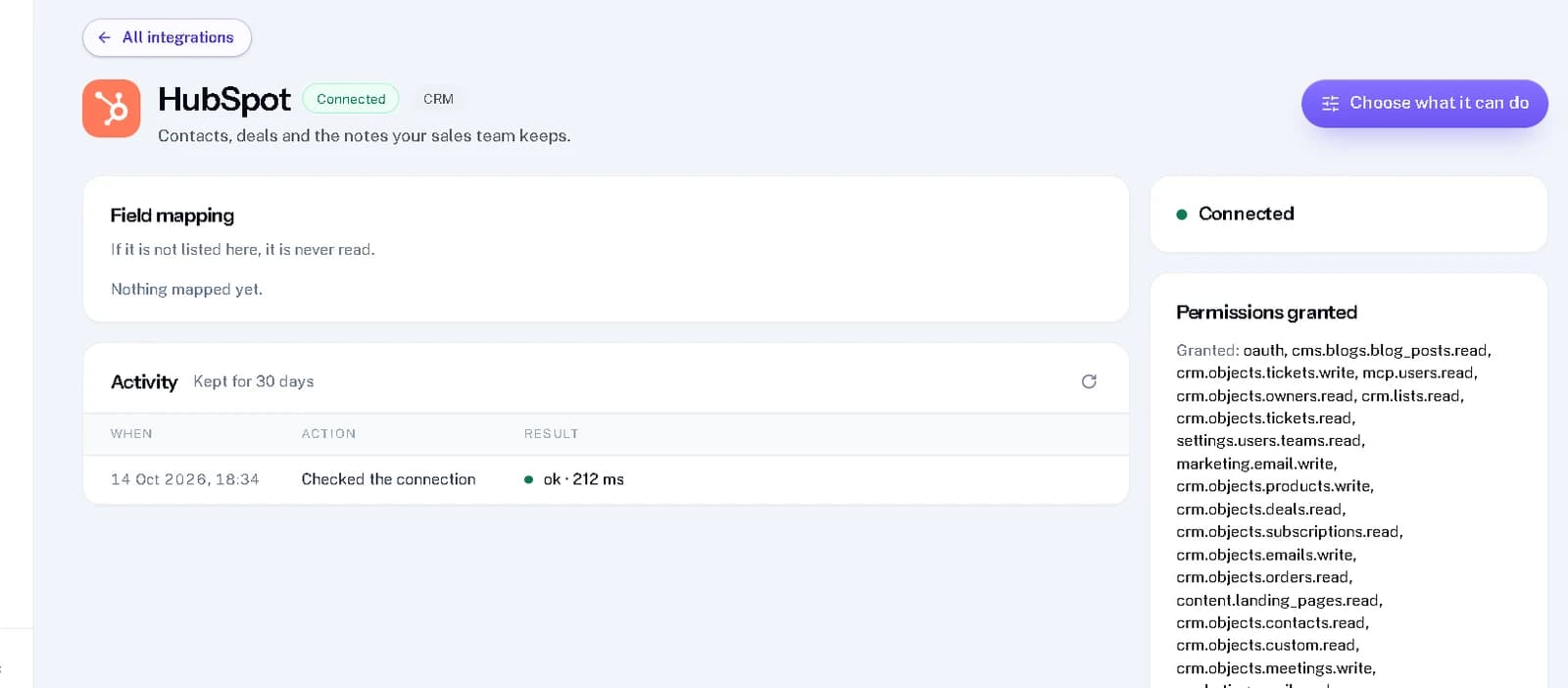
- 2Check the connection status, recent activity and the permissions granted.
- 3Click Test connection whenever you want to check that the connection still works.
Result
You can confirm HubSpot is connected and still reachable.
Step 4
Set up Actions and approvals
Turn on the actions you need
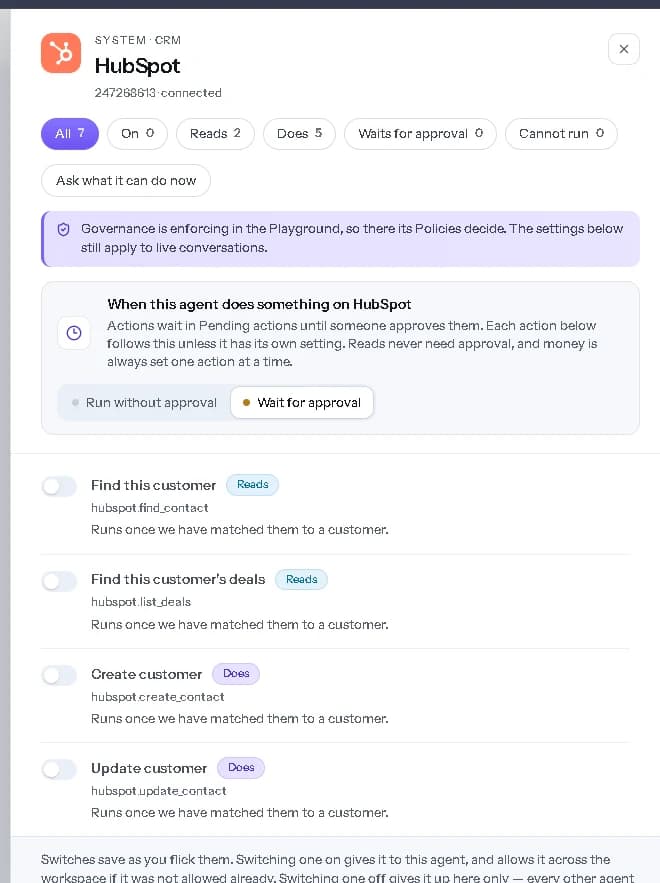
- 1Go to Agents → your agent → Actions and click the HubSpot card. A panel opens on the right with the available actions and their settings.
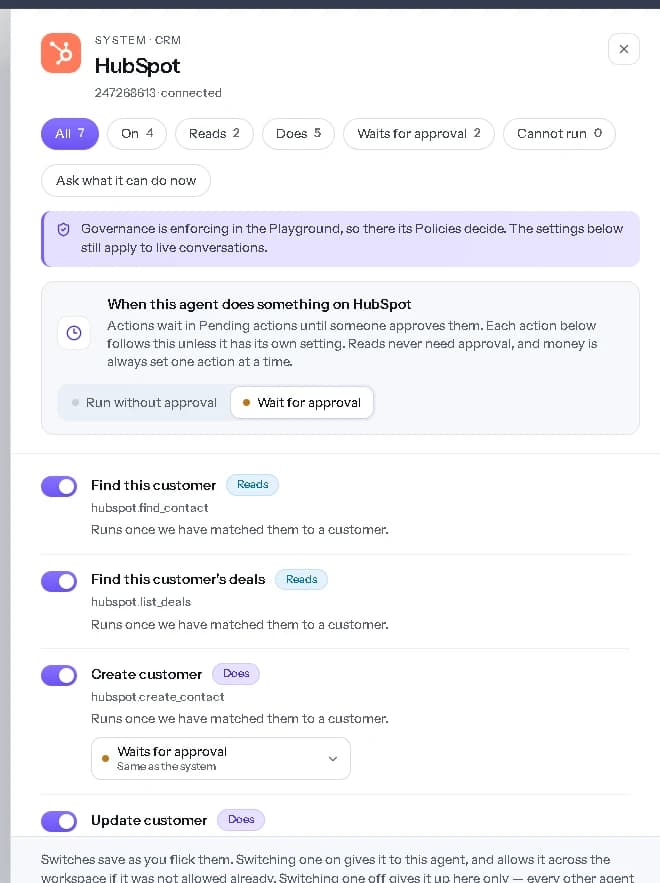
- 2Use the switch beside each action to turn it on for this agent. Changes save as you make them.
- 3Use the On, Reads and Does filters to review your selection.
Workspace and other agents
Turning an action on can also allow it across the workspace if it was not allowed already. Turning it off for this agent does not turn it off for other agents.
Choose when an action needs approval
At the top of the panel, When this agent does something on HubSpot controls whether the Does actions you switch on are held for a person to approve.
- Run without approval: the agent can attempt the action without waiting for a team member. Customer identity and any policies still apply.
- Wait for approval: the action is held until an authorized team member reviews it. It is not carried out just because the agent asked.
When you switch on a Does action, you can give it its own setting. This overrides the HubSpot-wide setting for this agent:
| Setting | What happens |
|---|---|
| Same as the system | Uses the HubSpot-wide setting at the top of the panel. |
| Run without approval | Does not wait for team approval, unless another control requires it. |
| Wait for approval | Always waits for a reviewer before the action is attempted. |
Read actions do not use this approval setting.
Governance policies
A Governance policy can require approval, decline the request or apply another outcome, even if the action is set to run without approval. In the Playground, follow the Governance status shown for the selected test environment.
Result
You know which HubSpot actions this agent can use and which wait for approval.
Step 5
Try it
Go to Agents → your agent → Playground and send a request that would use a HubSpot action.
| Ask | What to check |
|---|---|
| “I'd like to discuss an event with your sales team. Can you pass my details along?” | The agent may ask the customer to confirm the details first, and the Playground shows the Governance outcome. |
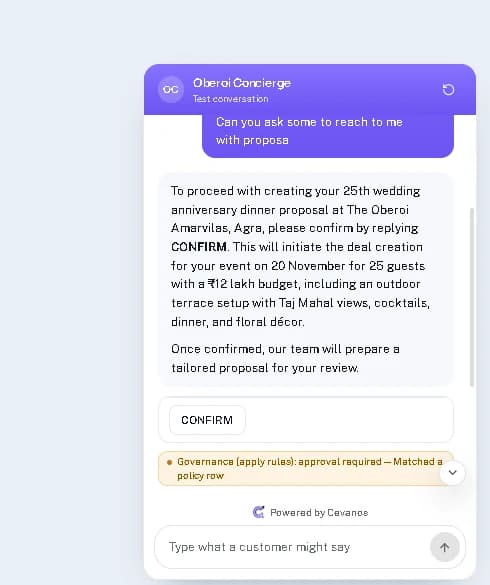
Confirmation is not approval
A confirmation from the customer and an approval from a team member are two different requirements.
Result
You can see whether the request ran, needs the customer to confirm, or is waiting for approval.
Step 6
Review pending approvals
For sensitive CRM changes, a Governance policy decides whether a request is allowed, needs a person's approval or cannot go ahead.
See why approval was required
Open Governance → Monitoring & Audits → Decisions and open the decision for the request. Approval required means the action matched a policy that asks a person to review it. The page also shows which policy applied.
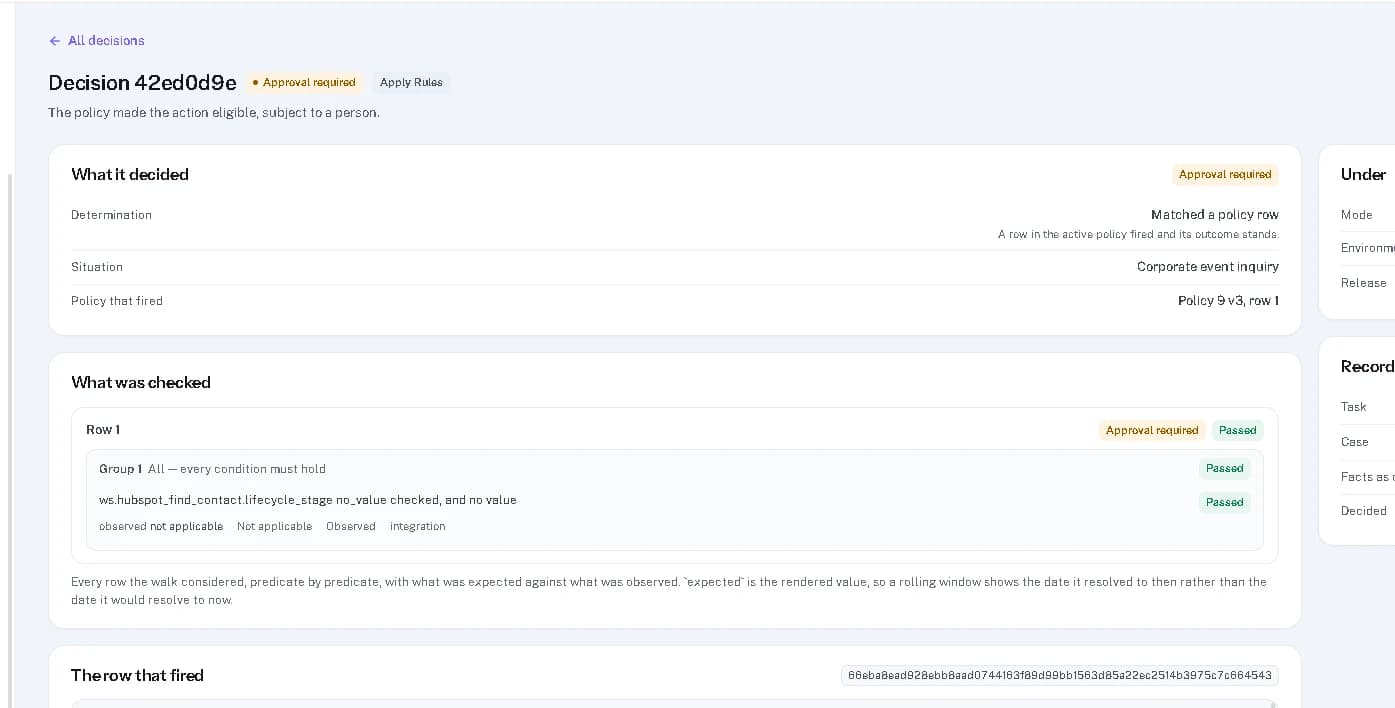
Nothing has changed yet
Approval required does not mean the change has been made in HubSpot.
Review the request in the Approval Queue
Open Governance → Approval Queue, go to the Pending tab, find the HubSpot request and click Review. A team member with approval permission can inspect the operation and approve or decline it.
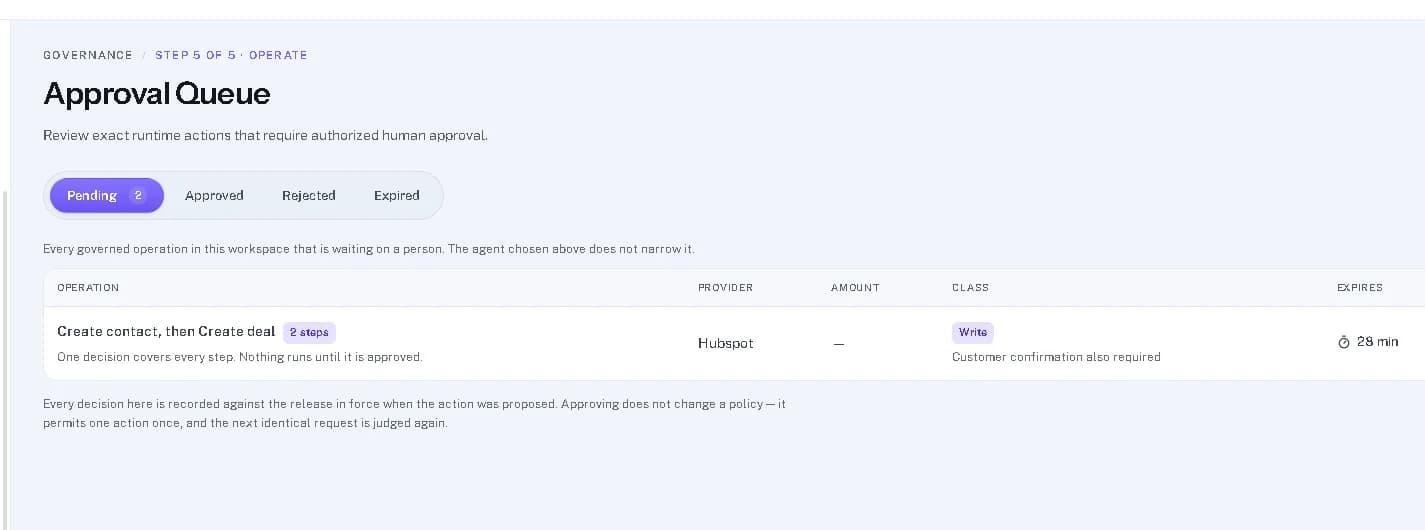
- Approve: the operation can be attempted. Linked steps run in order. Approval does not guarantee that each step succeeds.
- Decline: the operation does not run. The decision and the reason are recorded.
- A request can also expire if no one reviews it in time. Use the Approved, Rejected and Expired tabs to look back at decisions.
Which queue?
Governance → Approval Queue is the workspace-wide view of policy-controlled requests waiting for staff approval. The agent's pending actions link opens a separate agent-level view. The two lists are not interchangeable.
Check what actually happened
After an approval, open Governance → Monitoring & Audits and check the operation's execution status. You can also check the record in HubSpot.
Result
You know whether the change was made. A recorded approval and a successful change are not the same thing.
Reference
What HubSpot can do
HubSpot actions are grouped into Reads, which retrieve information, and Does, which create or change records in HubSpot. Every action works with the customer identified in the conversation, so the agent must be able to match the customer first.
7 capabilities · 2 reads · 5 that change something
- Matched customer
Find this customer
Looks up the customer's contact record in HubSpot.
hubspot.find_contact - Matched customer
Find this customer's deals
Finds deals associated with that customer.
hubspot.list_deals
- Matched customer
Create customer
Adds a new contact record in HubSpot.
hubspot.create_contact - Matched customer
Update customer
Updates information on an existing contact record.
hubspot.update_contact - Matched customer
Create support ticket
Creates a support ticket for the customer in HubSpot.
- Matched customer
Create customer note
Adds a note to the customer's contact record.
- Matched customer
Create deal
Creates a sales deal in HubSpot.
Troubleshooting
| Problem | What to check |
|---|---|
| HubSpot is connected, but my agent is not using it | Open Agents → your agent → Actions → HubSpot and make sure the action you need is switched on. Also check that the customer can be matched and that the HubSpot account has the required access. |
| The agent asked to create a record, but nothing appeared in HubSpot | Check whether the request still needs customer confirmation or staff approval. For governed requests, open Governance → Approval Queue. After approval, check Monitoring & Audits for the execution result. |
| The Playground says “Approval required” for an action set to run without approval | The Playground may be evaluating Governance policies for its selected environment, and a policy can require review whatever the action's own setting. Open the decision in Monitoring & Audits to see the policy outcome. |
| I cannot find a request that is waiting for approval | Use Governance → Approval Queue for policy-controlled operations waiting on a team member. For an agent-level pending action, use the agent's pending actions link in the Approval Queue. |
| The connection stops working | Open Deployment → Integrations → HubSpot and click Test connection. If the connection is no longer valid, reconnect the HubSpot account and review its requested permissions. |
Optional
Disconnect HubSpot
- 1Open Deployment → Integrations → HubSpot.
- 2Click Disconnect HubSpot. This removes Cevanos's access to the connected HubSpot account.
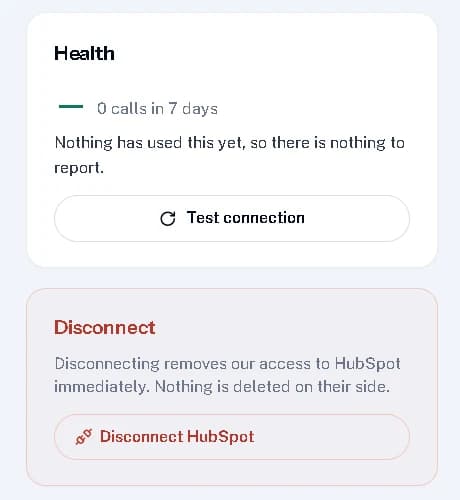
Your data stays
Disconnecting does not delete the records already stored in HubSpot.
Ready to connect HubSpot?
Open your agent's Integrations and click Connect on the HubSpot card.