



Overview
Stripe lets your agent answer billing questions using information from your Stripe account. Once a customer is matched to their Stripe record, the agent can look up their charges, check one payment and find the subscriptions they are on.
All four Stripe capabilities are reads. The agent does not issue refunds, take payments, cancel subscriptions or change plans.
About the card label
The Stripe card says “refunds and disputes”. That is the category it belongs to, not a list of what it does. Nothing is refunded or charged by these actions.
The journey at a glance
- 1Find StripeOpen Integrations, search for Stripe and click Connect.
- 2Connect StripePaste the restricted key and click Verify & connect.
- 3Check the Stripe pageConfirm Connected, the field mapping and Health.
- 4Choose what it can doTick Workspace and This agent, then Save capabilities.
- 5Check the agent's ActionsSwitch on the Stripe reads this agent should use.
- 6Try itAsk billing questions in the Playground as a matched test customer.
Before you start
You need a Stripe account that can manage API keys. You will create a restricted key, which is safer than a full secret key because it can only read what this integration needs.
Create a restricted key in Stripe
- 1In the Stripe Dashboard, open Developers → API keys.
- 2Click Create restricted key and give it a name you will recognise, such as “Cevanos billing lookup”.
- 3Set Charges, Customers, Invoices and Subscriptions to Read. Leave everything else at None.
- 4Create the key and copy its value. Stripe shows the full value once; keep it in your password manager.
- 5Check whether you are in test mode or live mode.
Test first
Use a test-mode key while you set up and test. Switch to a live key only when you are ready.
Why Customers matters
Before the agent can read any billing record, it has to match the conversation to the right Stripe customer. Never share the key in chat, email or a screenshot.
If you cannot see Create restricted key, ask a Stripe administrator on your account.
Step 1
Find Stripe
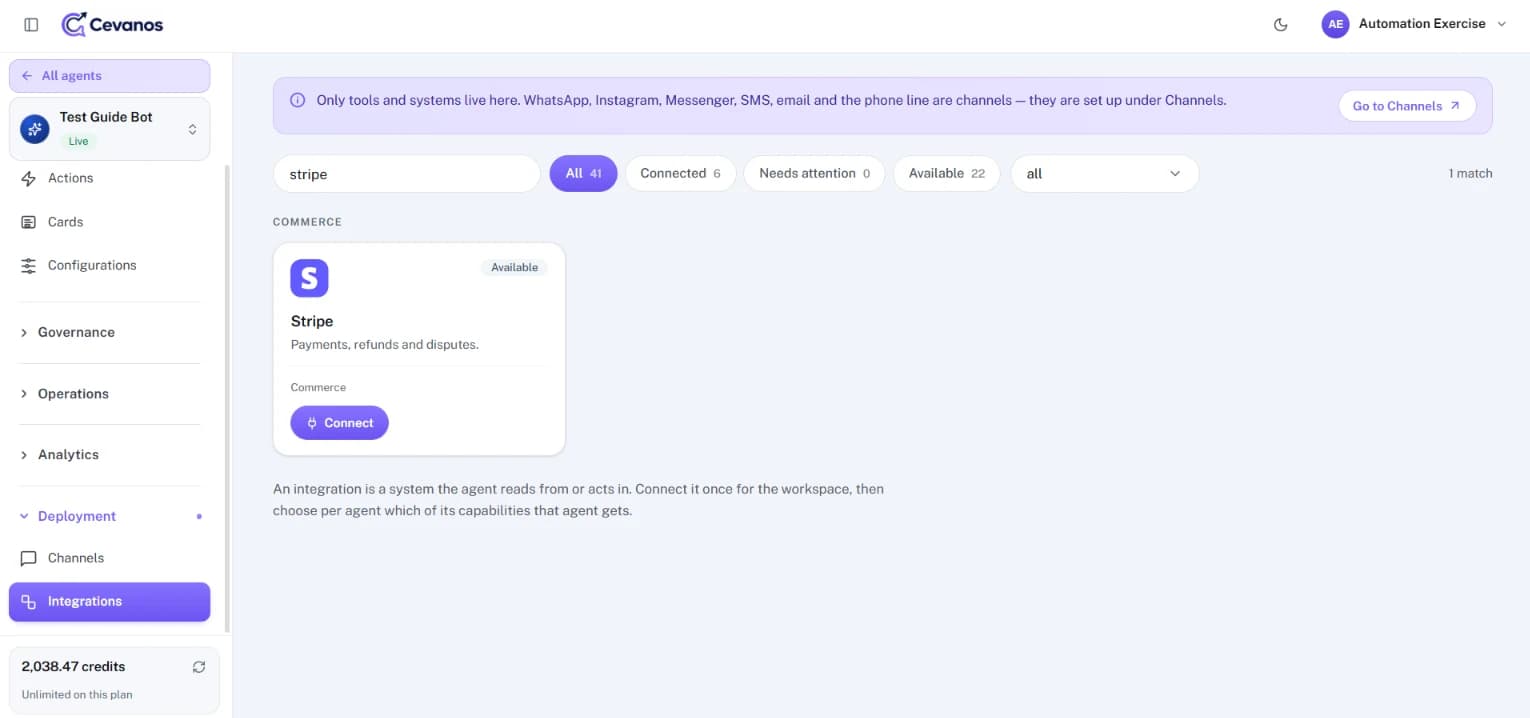
- 1In the Cevanos dashboard, open your agent and click Integrations (under Deployment) in the left sidebar.
- 2Type Stripe in the search box, or look under Commerce.
- 3Check the badge on the card. Available means it is not connected yet. Click Connect.
Result
The Connect Stripe pop-up opens. Stripe is connected once for the workspace; you then choose what each agent can use.
Step 2
Connect Stripe
2a. Before you start
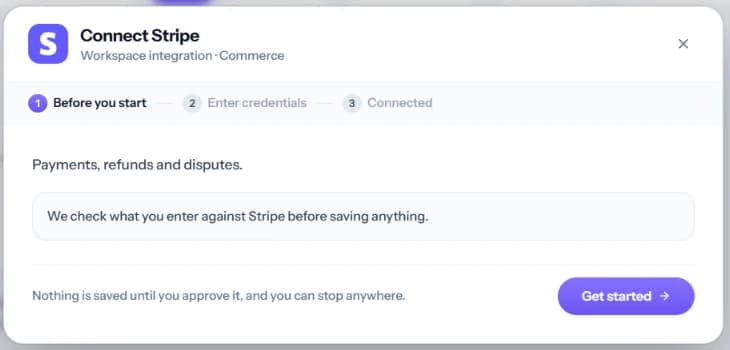
- 1Check that the pop-up is for Stripe.
- 2Read the note: Cevanos checks your key with Stripe before it saves the connection.
- 3Click Get started.
2b. Enter the restricted key
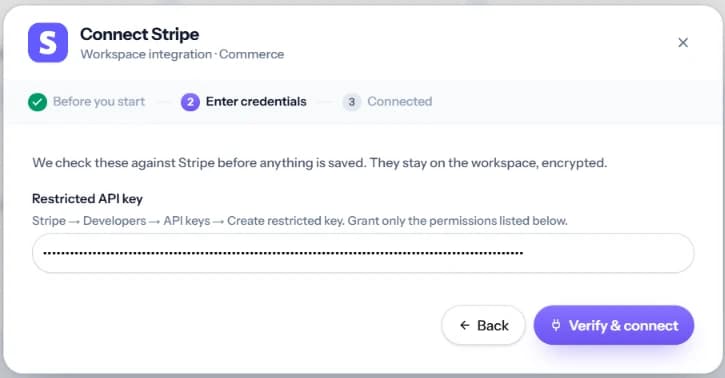
- 1Paste the key you created into Restricted API key.
- 2Make sure it is the restricted key, not your publishable key or your full secret key.
- 3Click Verify & connect and wait for the check to finish.
If it fails
Check that you copied the whole key, that it belongs to the right Stripe account and mode (test or live), and that all four resources are set to Read.
2c. Connected
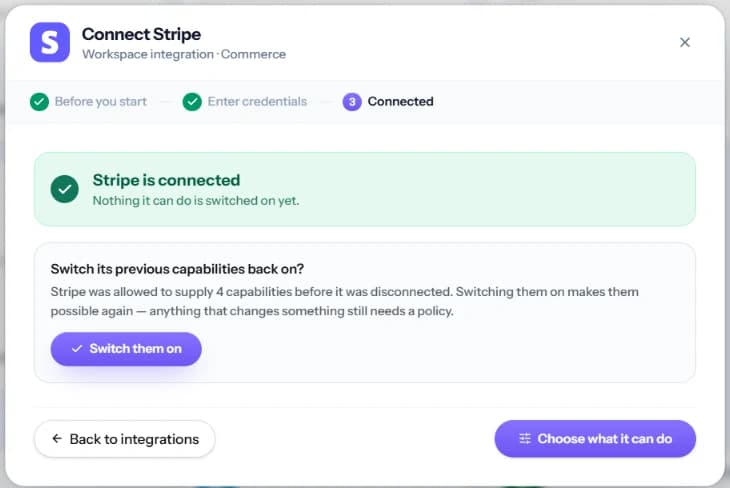
- The pop-up says “Stripe is connected”.
- If Stripe was connected before, you may be offered to switch its previous capabilities back on. Only do this on purpose.
- Click Choose what it can do to go straight to Step 4, or Back to integrations.
Result
Stripe is connected for the workspace, but nothing it can do is switched on for your agent yet.
Step 3
Check the Stripe page
- 1Back on Integrations, click the connected Stripe card.
- 2Check the Connected status and read the Field mapping: the Stripe fields Cevanos uses and what each is called in Cevanos.
- 3In Health, click Test connection whenever you want to check Cevanos can still reach Stripe.
Result
You can confirm Stripe is connected. If a lookup is missing later, check both the key's permissions in Stripe and the capabilities in Cevanos.
Step 4
Choose what it can do
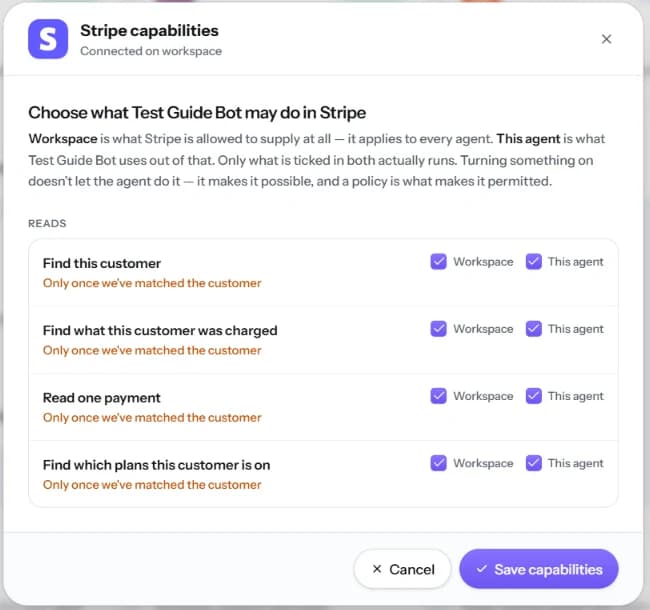
Click Choose what it can do on the Stripe card. Each capability has two checkboxes: Workspace allows it anywhere in the workspace, and This agent gives it to the agent you are setting up. Both must be ticked.
- 1Tick Workspace for each read you want to allow in the workspace.
- 2Tick This agent for each read this agent should have.
- 3Note “Only once we've matched the customer” on every Stripe capability.
- 4Click Save capabilities.
Identity
A visitor never gets billing details until Cevanos has matched them to the right Stripe customer. An email typed into the chat is not proof of who someone is.
Result
The reads you ticked in both columns are available to this agent.
Step 5
Check the agent's Actions
- 1In your agent's left sidebar, open Actions.
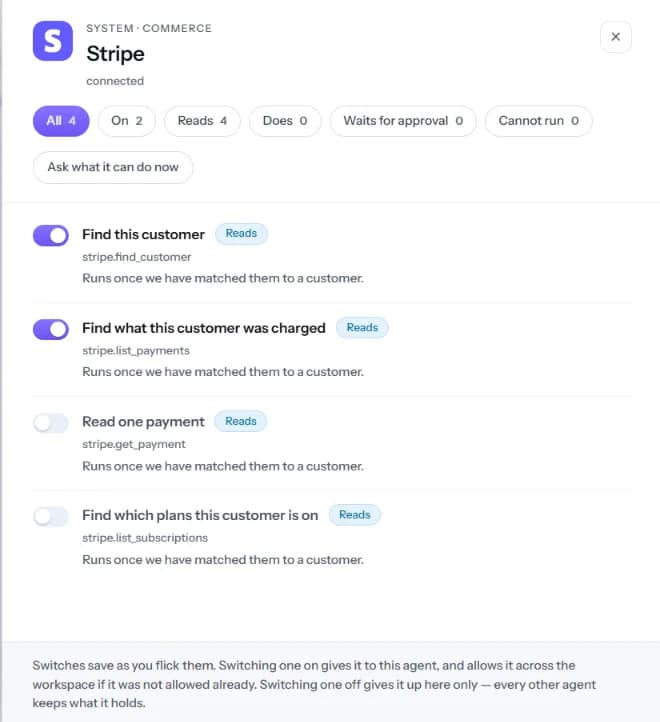
- 2Under Commerce, click the Stripe card to open its panel.
- 3Use the All, On, Reads and Cannot run filters.
- 4Turn on only the reads this agent should use. Each switch saves as you change it.
- 5Click Ask what it can do now for a quick check, then test in the Playground.
No approvals here
Stripe's four reads never wait for approval, because none of them changes anything.
- Reads run immediately and need no approval.
- Actions marked Matched customer run only after the customer's email or phone is matched to a customer.
- Actions marked Confirmed customer also need a verification code: the customer gets a 6-digit code by email, valid for 10 minutes and usable once. A newer code replaces an older one. Once the code is accepted, the customer may need to send one more message (for example “yes”) before the action is proposed.
- Actions that change something wait in Operations → Pending actions until a team member approves them.
- Approving in Pending actions can reload the Playground and reset its Test as email, so open Pending actions in a second browser tab while you test.
Result
You know which Stripe reads this agent can run.
Step 6
Try it
Use Stripe test mode and a test customer first. The test customer's email must belong to a customer in the Stripe account you connected.
| Ask | What to check |
|---|---|
| “Can you find my billing account?” | The right customer is matched and no one else's account is shown. |
| “What was I charged last month?” | Only that customer's charges, each in its own currency. |
| “Can you check my latest payment?” | Real payment details, not an invented answer. |
| “Which plan am I on?” | The subscription lookup is used, if you switched it on. |
| “Show me someone else's payments.” | Nothing about another customer is shown. |
- 1Open the Playground for your agent.
- 2Set Test as to a matched test customer, then ask the questions above.
- 3Check that the agent uses the Stripe reads and only reports what it found.
- 4Back on the Stripe page, check Health and recent activity.
Result
Your agent answers billing questions from Stripe, and only for the customer it has matched.
Reference
What Stripe can do
Stripe supplies four capabilities. All four are reads and all four need a matched customer.
4 capabilities · 4 reads
- Matched customer
Find this customer
“Can you find my billing account?”
stripe.find_customer - Matched customer
Find what this customer was charged
“What have I been charged recently?”
stripe.list_payments - Matched customer
Read one payment
“Can you check this specific payment?”
stripe.get_payment - Matched customer
Find which plans this customer is on
“Which subscription plan am I on?”
stripe.list_subscriptions
Good to know
Amounts in different currencies are kept in their own currency, never added together.
Troubleshooting
| Problem | What to check |
|---|---|
| Verify & connect fails | Check you pasted the whole restricted key, from the right account and mode, with Charges, Customers, Invoices and Subscriptions set to Read. |
| Customer data is not returned | Check that the customer has been matched, and that they exist in the Stripe mode (test or live) you connected. |
| A lookup is missing | Check Workspace and This agent in Choose what it can do, and that the action is On in Actions. |
Optional
Disconnect Stripe
- 1Open the Stripe page and find the Disconnect box.
- 2Read which agents are affected, then confirm only if you want Cevanos to stop using Stripe.
- 3To revoke the key itself, delete or roll the restricted key in the Stripe Dashboard.
Your data stays
Disconnecting does not delete any Stripe customers, payments or subscriptions.
Ready to connect Stripe?
Open your agent's Integrations and click Connect on the Stripe card.