



Overview
A Custom Action lets your agent call one of your own APIs, for example to look up an order, and use the answer in the conversation. Cevanos can also show the answer to the customer as a card.
You set each action up once in a guided seven-step builder. This guide follows one example: a read-only action called “Check order status”.
The journey at a glance
- 1Open Custom actionsOpen Actions, then Custom actions, and click Define an action.
- 2Describe the actionChoose what it does and who can trigger it, then name it.
- 3Build the requestSet the method and path, then define each input.
- 4Choose what the agent seesTick the answer fields the agent may read, and pick a card.
- 5Review and saveRead the summary back and click Save action.
- 6Try itRun Test on the action's row, then ask in the Playground.
Before you start
Your agent needs an API that is already connected. It appears as a card on the Custom actions page, for example “My API”. If you have none, use Connect another in step 1 of the builder.
Nothing exists until you save
The builder opens as a pop-up with seven steps along the top. You can move between them by clicking their names. Nothing is created until you click Save action on the last step.
Step 1
Open Custom actions
- 1In the Cevanos dashboard, open your agent and click Actions in the left sidebar. You see every system your agent can act on.
- 2Click the Custom actions card at the top, under the Custom actions heading.
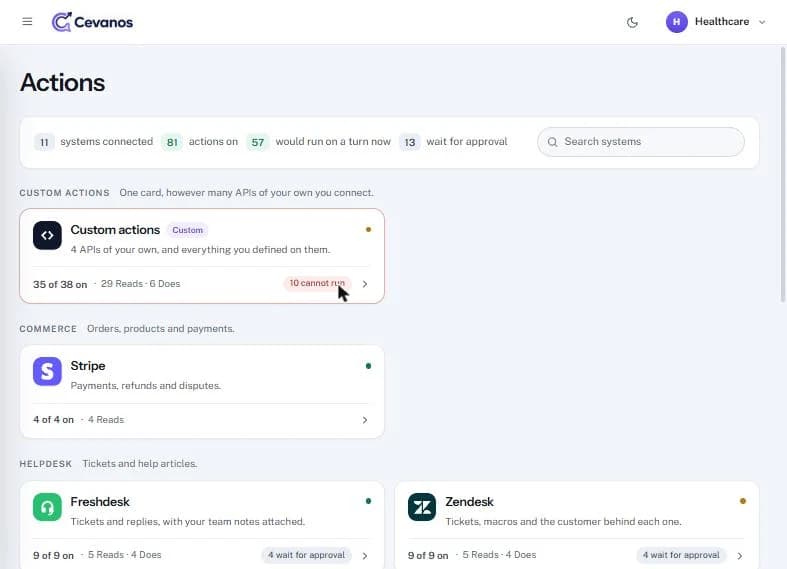
The Custom actions page shows a summary strip with how many APIs are connected and how many actions are defined and switched on. Below it are your connected APIs and the actions on each one. Cards that only show content (“a card, and nothing else”) are listed under This workspace.
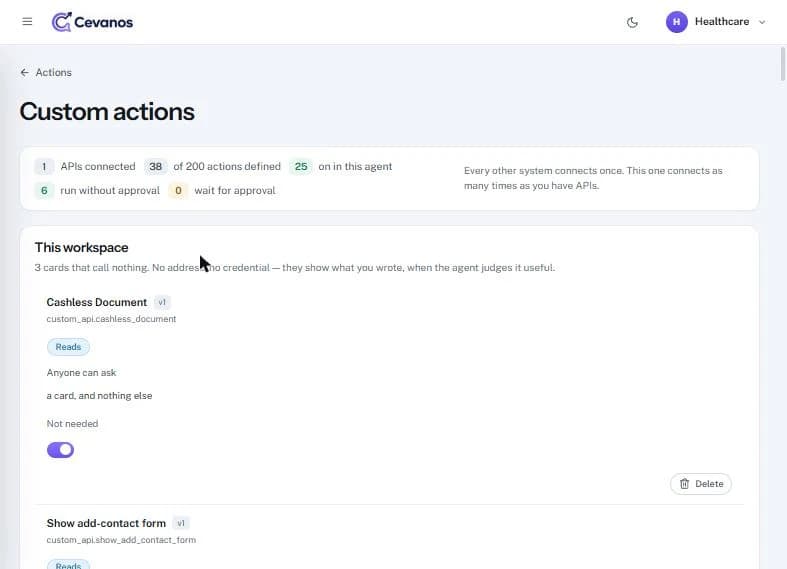
- 1Scroll to the end of the page.
- 2Click Define an action on an API card, or in the Define something else box at the bottom.
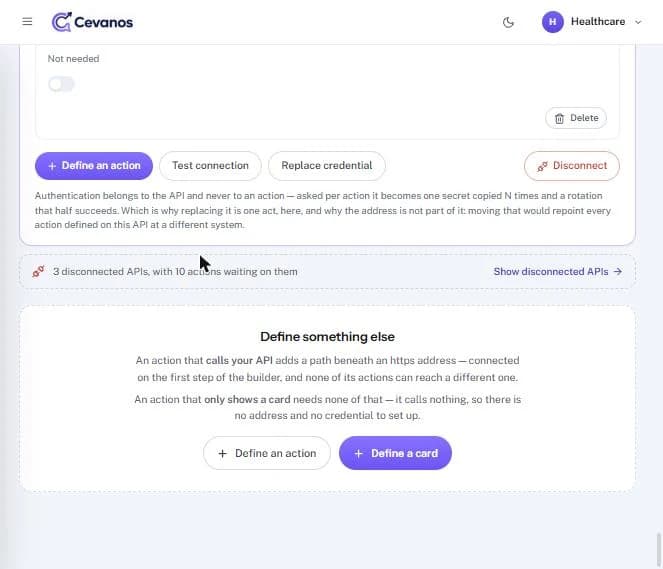
Define a card
Define a card is the other option. It creates a card that calls nothing, so it needs no API address or credential.
Result
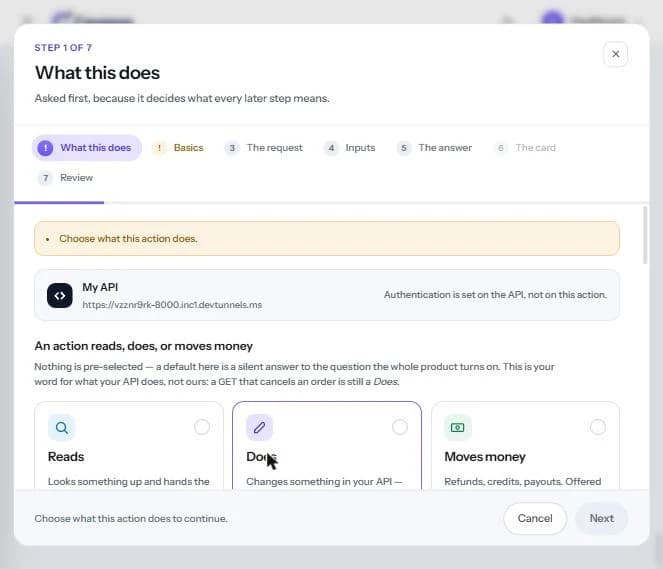
The builder opens on step 1, What this does.
Step 2
Describe the action
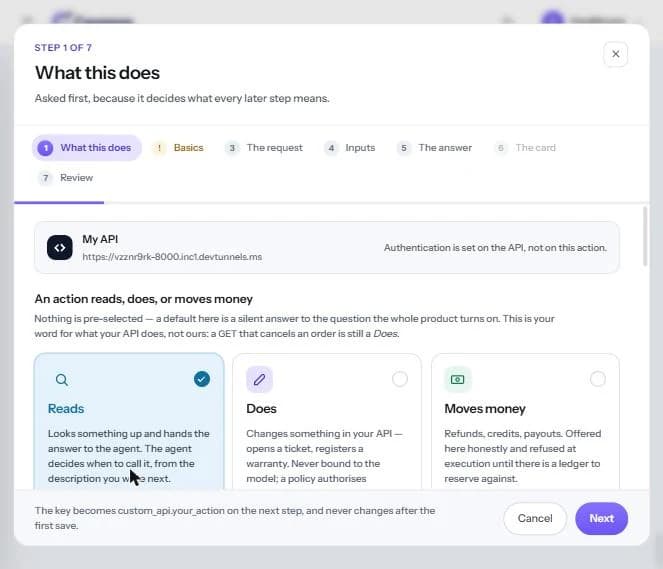
1. What this does
Cevanos asks this first because it decides what every later step means. Nothing is pre-selected on purpose.
- 1Choose what the action does: Reads (looks something up), Does (changes something in your API) or Moves money (refunds, credits, payouts).
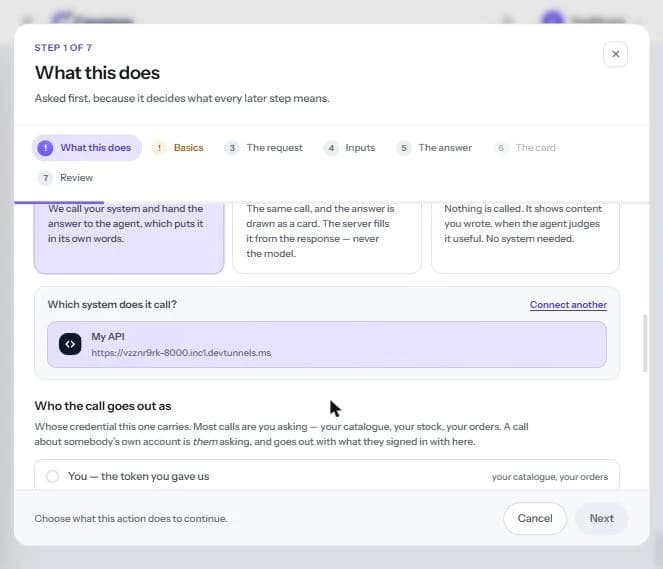
- 2Choose the type: API call, API call + card or Card only.
- 3Choose the system it calls, for example “My API”. Use Connect another to add a new API.
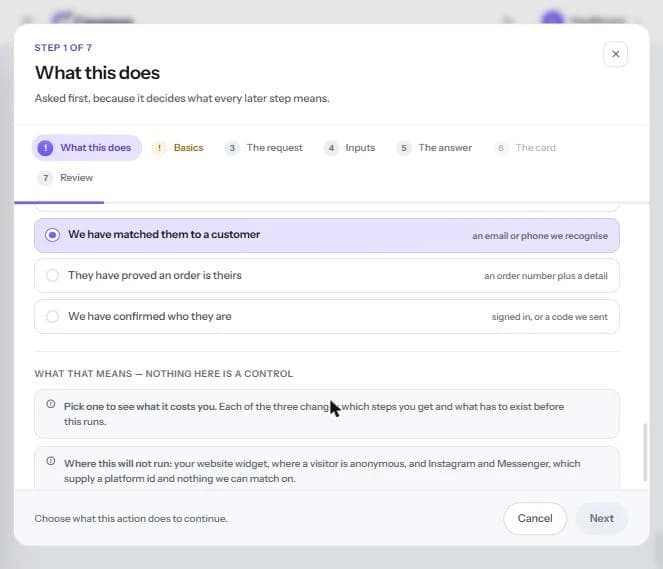
- 4Choose who the call goes out as: you (your token), the customer (once signed in), or nobody (no credential).
- 5Choose who can trigger it under Before it will run, we must know.
- 6Click Next.
| Type | What it does |
|---|---|
| API call | Cevanos calls your system and gives the answer to the agent, which puts it in its own words. |
| API call + card | The same call, and the answer is drawn as a card. The server fills the card from the response, never the model. |
| Card only | Nothing is called. It shows content you wrote when the agent judges it useful. No system needed. |
| Who can trigger it | Meaning |
|---|---|
| Anyone can ask | Runs on any conversation. |
| We have matched them to a customer | An email or phone number we recognise. |
| They have proved an order is theirs | An order number plus a detail. |
| We have confirmed who they are | Signed in, or a code we sent. |
Where it will not run
Actions that need a matched customer do not run on the website widget, where visitors are anonymous, or on Instagram and Messenger.
2. Basics
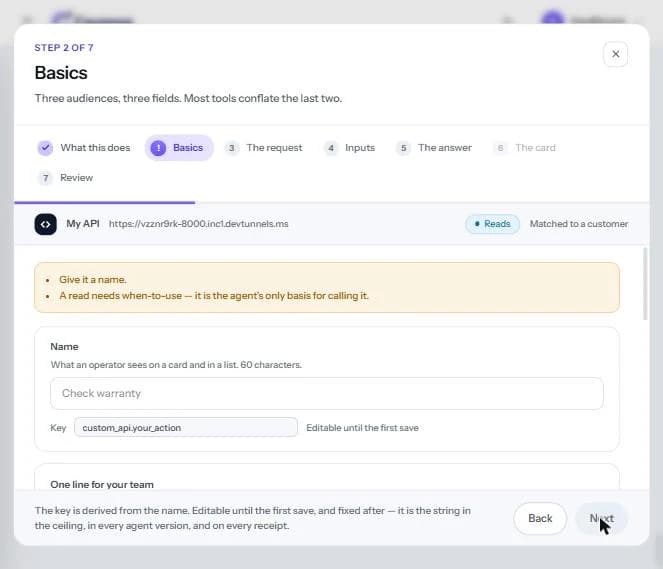
Three fields for three audiences: the operator (Name), your team (One line for your team) and the agent (When to use it).
- 1Name: a short name, up to 60 characters, for example “Check order status”. The Key is filled in for you (custom_api.check_order_status).
- 2One line for your team: a note for whoever inherits this later, up to 140 characters. Customers never see it.
- 3When to use it: up to 600 characters, and required for a read. It is the only thing the agent reads before deciding to call the action, so write the question a customer would ask.
- 4Click Next.
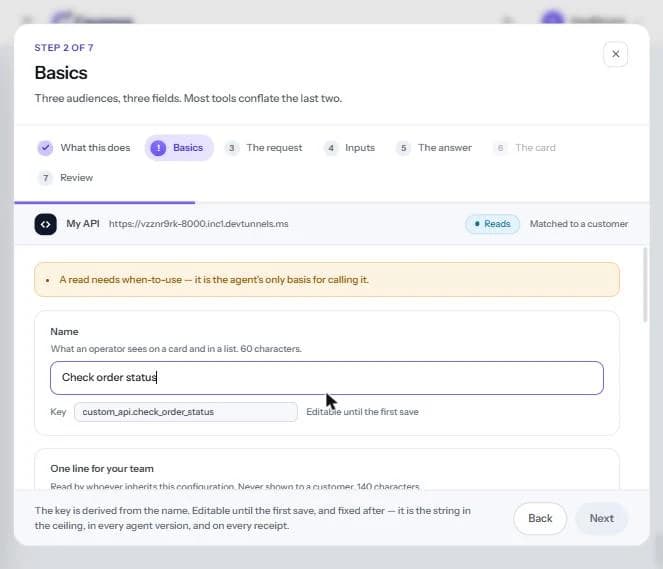
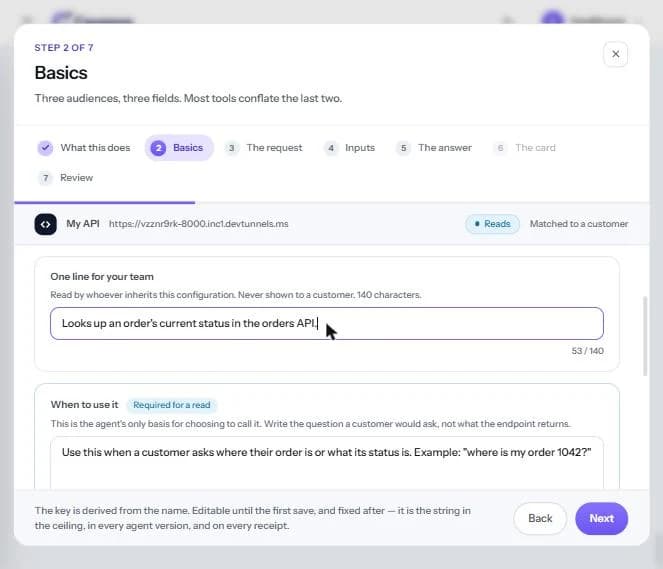
Tip
Write When to use it as a customer question (“where is my order 1042?”), not as a description of the endpoint. The key can be edited until the first save; after that it is fixed.
Result
The action has a class, a type, a system, a trigger rule and a name the agent understands.
Step 3
Build the request
3. The request
This is what Cevanos sends to your API. The step is skipped when the action only shows a card.
- 1Optional shortcut: click Got a curl? Paste it in and every field fills itself.
- 2Method: pick GET, POST, PUT, PATCH or DELETE. The method is not the class: a GET that cancels an order is still a Does.
- 3Path: type the path after your API address, with variable parts in braces, for example /orders/{order_id}.
- 4Optionally add Query parameters (for example ?page=1) and Headers. The credential is set on the API, not here.
- 5For POST, PUT or PATCH a Body appears (JSON or form encoding). GET sends no body.
- 6Click Next.
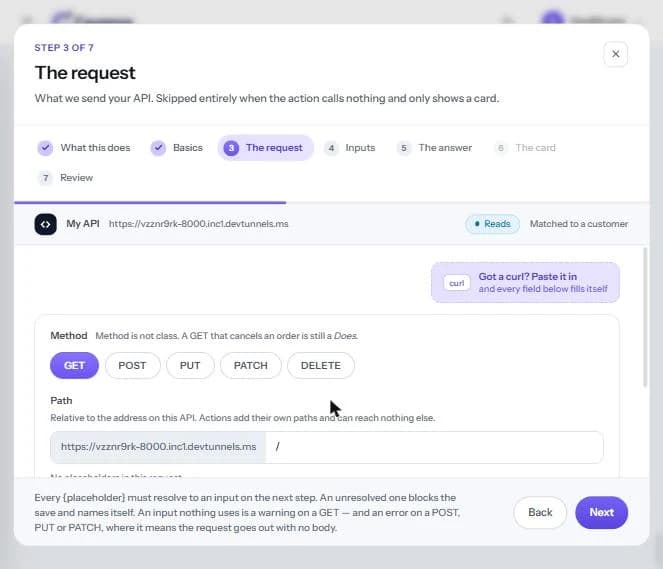
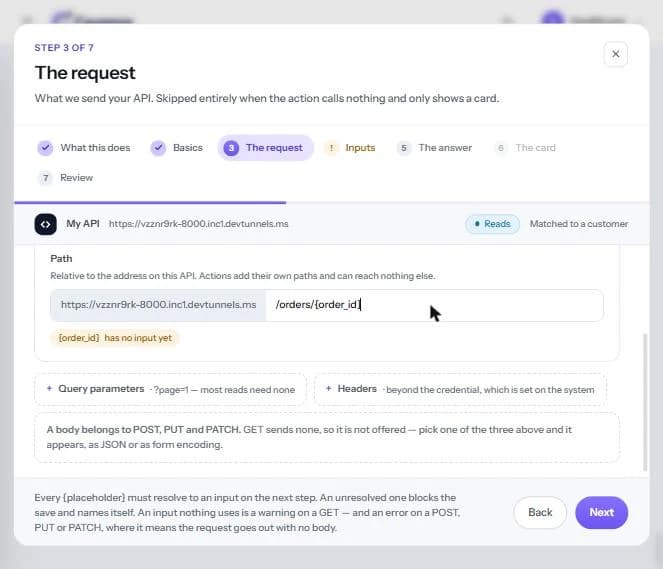
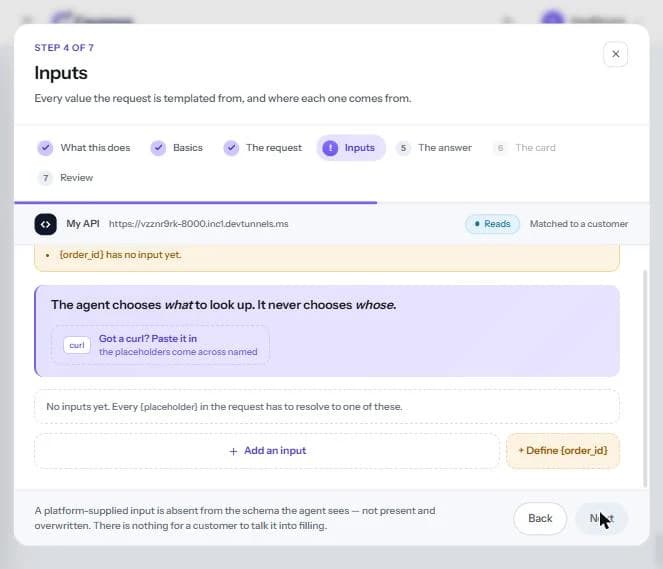
Every placeholder needs an input
Every {placeholder} must become an input in the next step. An unresolved one blocks the save and names itself. Actions can only add a path beneath the API address; they cannot reach a different host.
4. Inputs
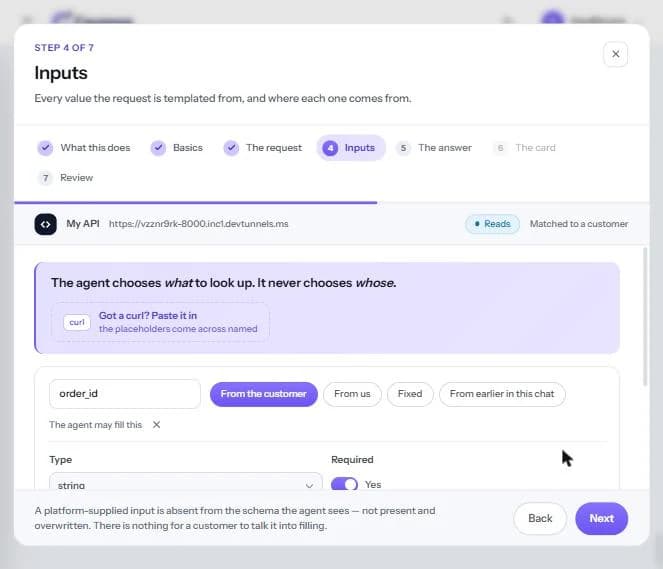
Every value the request needs, and where each one comes from. The agent chooses what to look up. It never chooses whose.
- 1Click + Define {order_id} (or Add an input) for each placeholder.
- 2Choose the source: From the customer, From us, Fixed or From earlier in this chat.
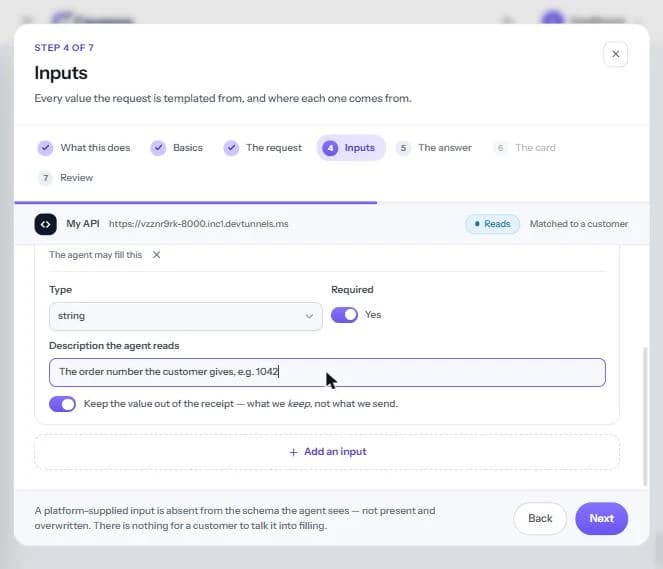
- 3Set the Type (for example string) and whether it is Required.
- 4Description the agent reads: a short sentence so the agent knows what to ask for, for example “The order number the customer gives, e.g. 1042”.
- 5Leave Keep the value out of the receipt on if the value should not be stored in the log.
- 6Click Next.
Tip
Inputs that come From us are hidden from the agent completely, so a customer cannot talk the agent into changing them. Use them for things like the customer ID.
Result
The request is complete and every placeholder has an input.
Step 4
Choose what the agent sees
5. The answer
What comes back from your API, and which parts of it the agent is allowed to know.
- 1Sample response: click Fetch a sample to call your API once, or paste an example response into the box. This only helps you pick field names. Nothing is stored or sent.
- 2What reaches the agent: tick the fields the agent may read. Nothing reaches the model until you tick it.
- 3What this call leaves behind (optional): use + Capture a value to keep a value for later actions in the same conversation.
- 4Check the response rules: Counts as found (200, 201, 202, 204), Counts as nothing found (404), Give up after (10 seconds, from 1 to 30) and Repeat protection.
- 5Click Next.
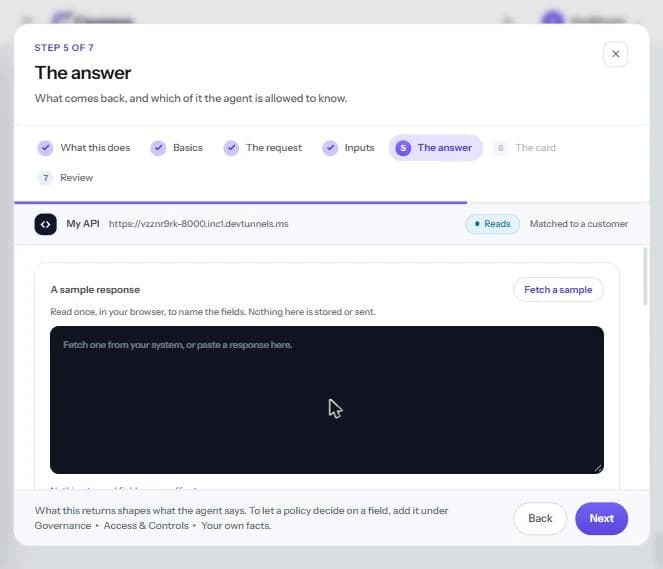
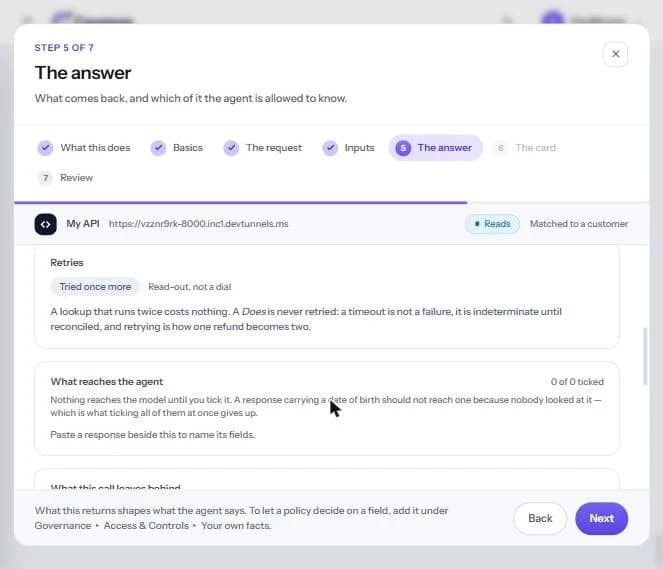
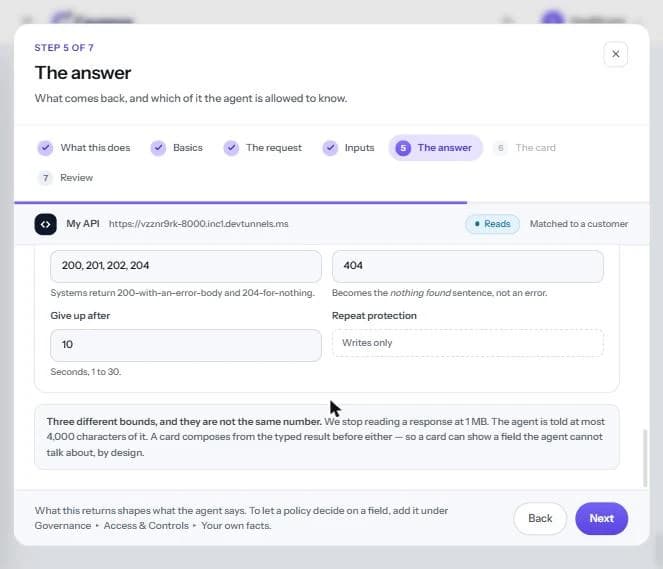
Fetch a sample calls your system
Fetch a sample really calls your API and shows the whole response.
6. The card
What the customer sees when the action runs. This step appears only for API call + card and Card only. For a plain API call it is greyed out and skipped.
- 1Choose a card from Your cards, Browse templates or Schema. Each card shows a preview and which action it draws for.
- 2Map which field from the response fills which part of the card.
- 3Or choose No card — answer in words to let the agent reply in text only.
- 4Click Next.
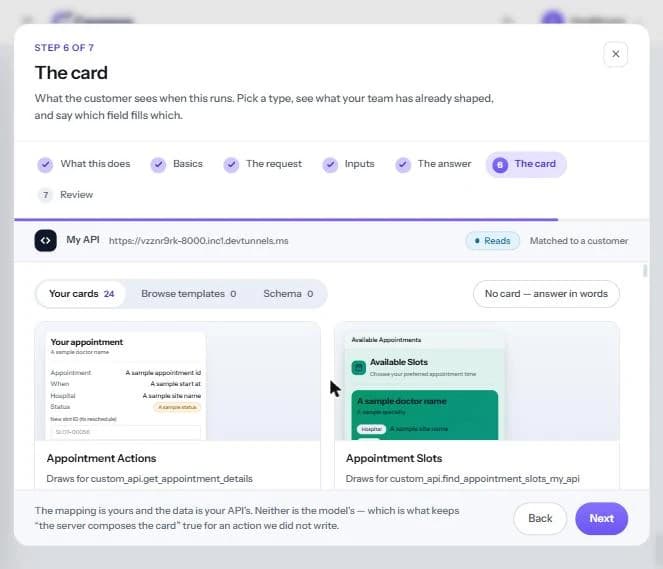
The server draws the card
The card is composed by the server from your API's data and your mapping, never by the model. So a card can show a field the agent is not allowed to talk about.
Result
You have decided exactly what the agent may read from the answer, and what the customer sees.
Step 5
Review and save
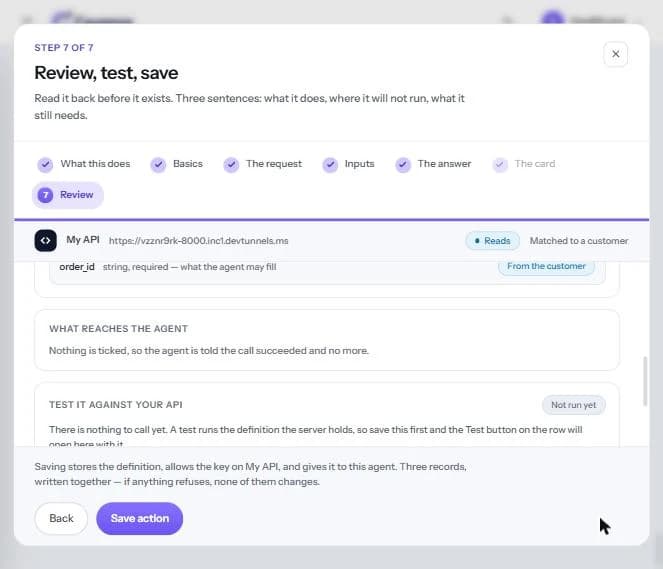
The top of the screen gives three sentences: what the action does, where it will not run, and what it still needs.
- 1Read the summary and check it matches what you intended.
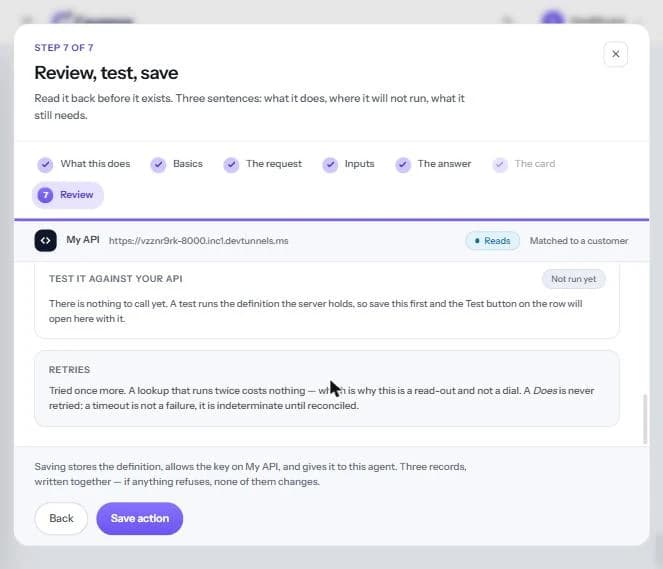
- 2Scroll down to check the request, the inputs, What reaches the agent and the retry behaviour.
- 3Note the Test it against your API box. It says Not run yet: the test runs the saved definition, so you save first and then use the Test button on the action's row.
- 4Click Save action.
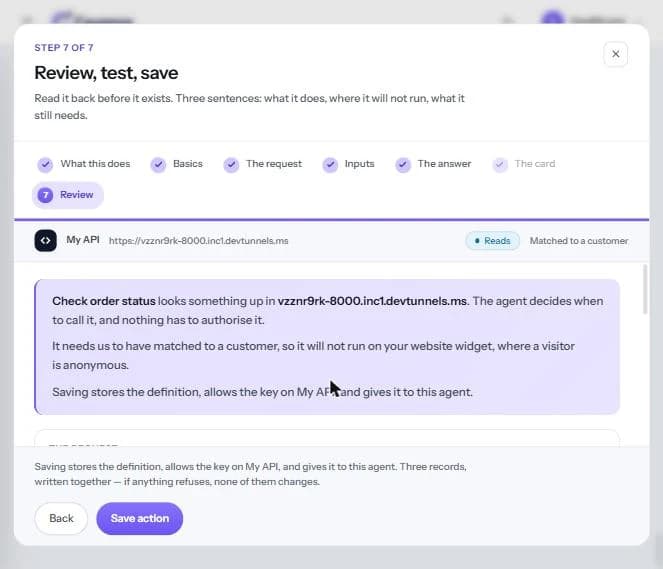
All or nothing
Saving writes three records together: it stores the definition, allows the key on the API and gives the action to this agent. If any one fails, none of them changes.
After saving
- The new action appears under your API on the Custom actions page.
- Each action has its own on/off switch and a Delete button.
- Actions that do something can also be set to Run without approval or Wait for approval.
Result
The action exists, is allowed on your API and is given to this agent.
Step 6
Try it
- 1On the Custom actions page, click Test on the action's row to run it against your API.
- 2Open the Playground and ask a question that should trigger it.
| Ask | What to check |
|---|---|
| “Where is my order 1042?” | The agent calls Check order status and answers only from the fields you ticked in What reaches the agent. |
Result
Your agent calls your own API when a customer asks the question you described.
Reference
What Custom Actions can do
You define Custom Actions yourself, so there is no fixed list. Each action is one of three classes.
| Class | What it means |
|---|---|
| Reads | Looks something up and hands the answer to the agent. |
| Does | Changes something in your API. |
| Moves money | Refunds, credits, payouts. |
Limits
- Cevanos reads up to 1 MB of a response, and the agent is told at most 4,000 characters of it.
- A read is retried once; a does is never retried.
- Name is up to 60 characters, One line for your team up to 140 and When to use it up to 600.
- The action key (custom_api.…) is created in step 2 and cannot change after the first save.
Troubleshooting
| Problem | What to check |
|---|---|
| Save action is blocked | A {placeholder} in the path has no input. Define it in Inputs; the builder names the one that is missing. |
| The action does not run on the website widget, Instagram or Messenger | Actions that need a matched customer cannot run there. Check the option chosen under Before it will run, we must know. |
| The agent says the call worked but gives no details | Nothing is ticked in What reaches the agent. Load a sample response and tick the fields the agent may read. |
| The agent does not call the action | Rewrite When to use it as the question a customer would ask; it is the only thing the agent reads before deciding. |
| The key cannot be changed | The key can be edited only until the first save; after that it is fixed. |
Optional
Disconnect Custom Actions
- 1Open Actions → Custom actions.
- 2Turn off the action's switch to stop this agent using it, or click Delete to remove it.
Ready to connect Custom Actions?
Open your agent's Actions and add your first custom API.