



Overview
Shopify lets your agent help shoppers find products, check stock and understand their orders and deliveries. Depending on the capabilities you switch on, it can also prepare carts and checkouts, request returns, change eligible orders or issue refunds.
You do not build these actions yourself. Cevanos supplies them, you choose which ones the agent may use, and you control how changes are reviewed.
The journey at a glance
- 1Install Cevanos from ShopifyInstall the app from the Shopify App Store and approve its permissions.
- 2Link your Cevanos workspaceSign in to Cevanos in the window that opens and confirm the workspace.
- 3Check the Shopify pageConfirm Connected, field mapping, permissions granted and Health.
- 4Choose what it can doTick Workspace and This agent, then Save capabilities.
- 5Set up Actions and approvalsSwitch actions on and choose whether changes wait for approval.
- 6Try itAsk product and order questions in the Playground.
- 7Review pending approvalsApprove or reject waiting Shopify requests in Operations.
Before you start
You need two things:
- A Shopify login that can install apps on the store: the store owner, or staff allowed to install apps and approve every permission Cevanos asks for.
- A Cevanos account. If you don't have one yet, you can create it while you install.
No API key, no store name
Cevanos installs from the Shopify App Store. There is nothing to register, paste or type: Shopify tells Cevanos which store it is.
Step 1
Install Cevanos from Shopify
- 1Find Cevanos in the Shopify App Store. From the Cevanos dashboard you can also open Integrations, find the Shopify card and click Install from Shopify.
- 2Click Install and choose your store if Shopify asks.
- 3Review the permissions Shopify lists and approve them. Cevanos asks to read products, inventory (stock), orders, customers, draft orders and discounts, and to write draft orders, orders and returns.
- 4Shopify opens Cevanos inside your Shopify admin, on its Home page.
Why Cevanos asks to write
Each write is used only by an Action you switch on, such as cancelling an unpaid order or requesting a return, and any of them can wait for a teammate's approval first.
Result
Cevanos is installed on your store and open in your Shopify admin.
Step 2
Link your Cevanos workspace
A store connects to one Cevanos workspace. You link it once, from inside your Shopify admin.
2a. Connect the store
- 1On the Cevanos Home page in your Shopify admin, click Connect with Cevanos. A Cevanos window opens.
- 2Sign in with your email and password, Google, Microsoft or your company's single sign-on, or create a Cevanos account.
- 3Check the store and the workspace shown. To use another workspace, choose it under Not this workspace?
- 4Click Connect store. The window closes and you are back in your Shopify admin.
2b. Choose a plan
Shopify needs a Cevanos plan that includes Shopify. If your workspace doesn't have one yet, Home shows Choose a plan: it opens Shopify's plan page, where plans are billed through Shopify and start with a free trial. When you come back, Home shows Confirming your plan… and then Connected.
Your teammates
Each Shopify staff member links their own Cevanos account once, with Link your account on Home. What they can do in the Shopify admin is what their role allows in Cevanos.
Result
Shopify is connected for the workspace. You choose what the agent may use in Step 4, in the Cevanos dashboard or on the Shopify Actions page in your Shopify admin.
Step 3
Check the Shopify page
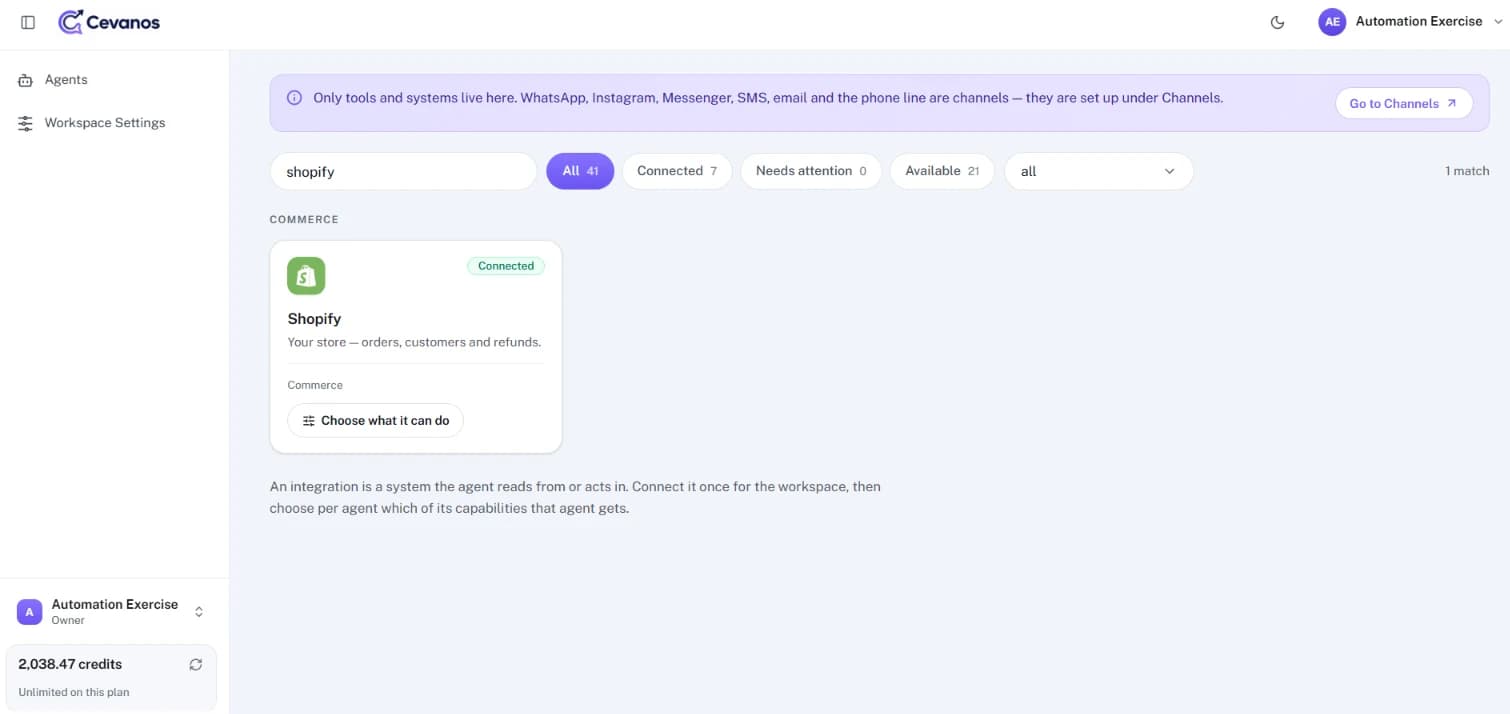
On Integrations, click the connected Shopify card to open its page.
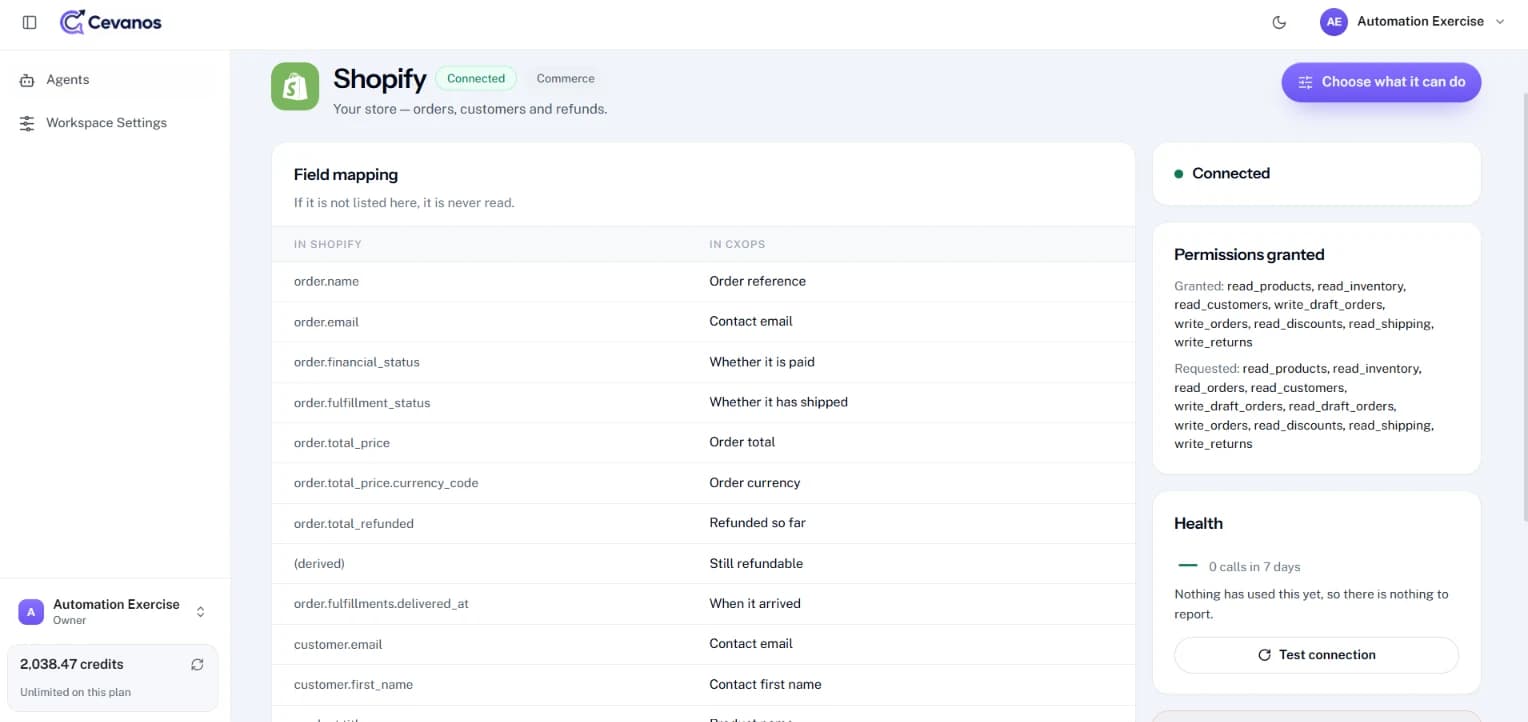
- 1Read the header: Shopify, the Connected badge, the category (Commerce) and the Choose what it can do button.
- 2Field mapping lists the Shopify fields Cevanos is allowed to read and what each is called in Cevanos. “If it is not listed here, it is never read.”
- 3Permissions granted shows what Shopify granted (Granted) beside what Cevanos asked for (Requested).
- 4Health shows the calls in the last 7 days. Click Test connection at any time to check Cevanos can still reach Shopify.
- 5Scroll down to find the red Disconnect box.
Granted vs Requested
read_orders and read_draft_orders may appear only under Requested. Shopify counts them as included with write_orders and write_draft_orders, so orders can still be read.
Result
You can confirm Shopify is connected, see exactly which fields are read, and use Test connection whenever you need to.
Step 4
Choose what it can do
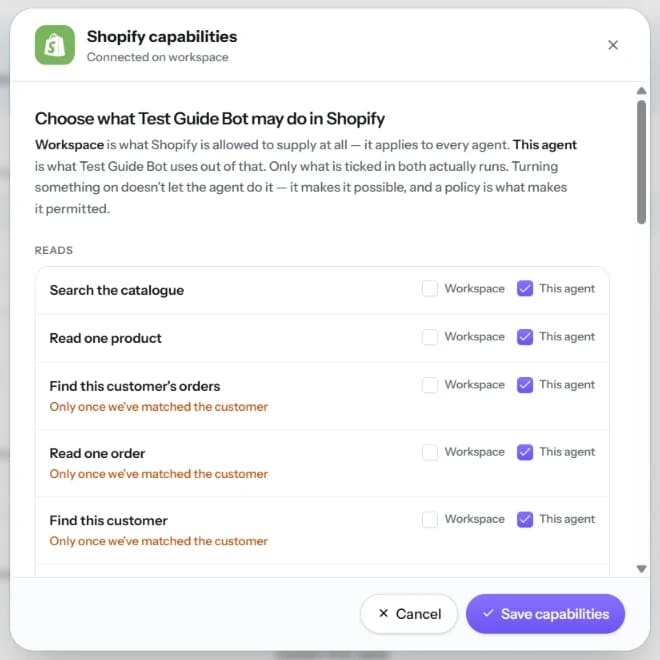
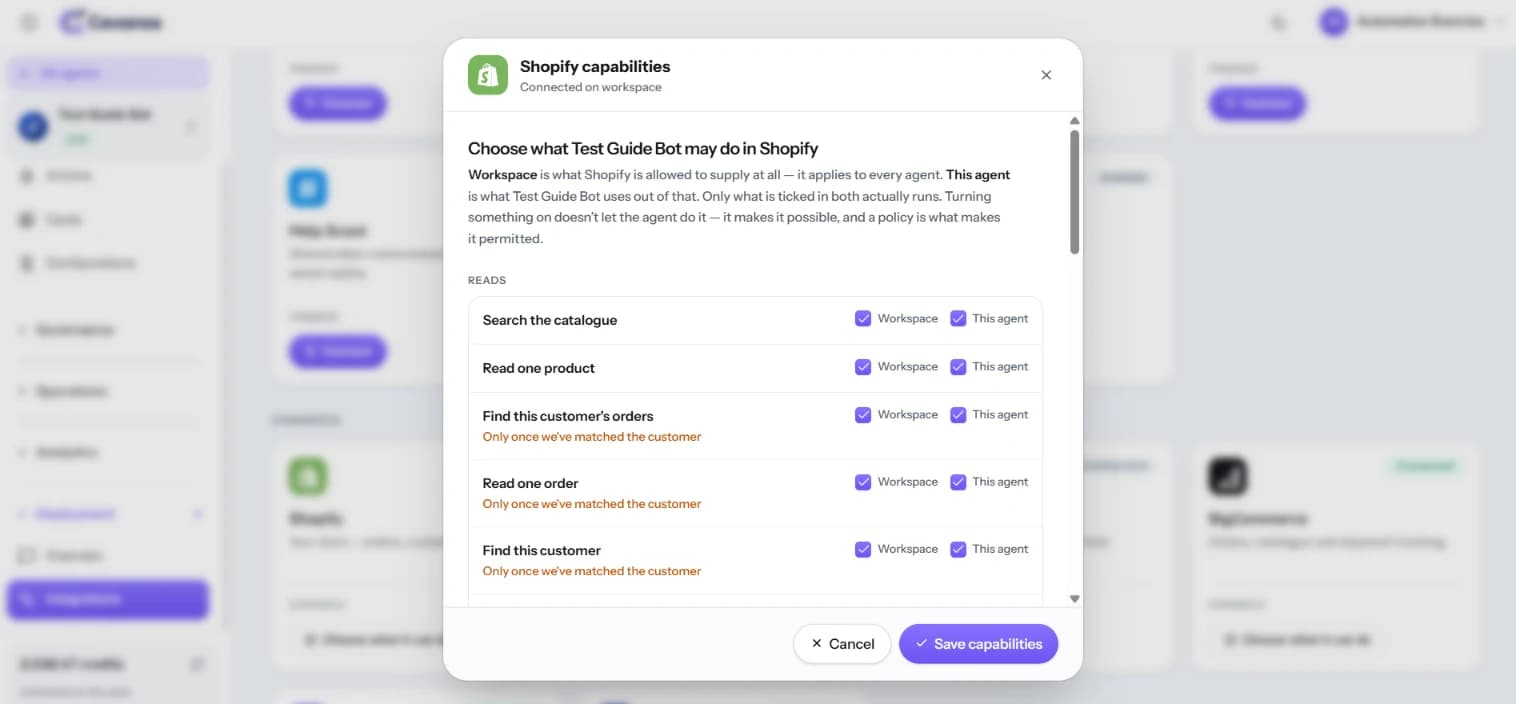
Click Choose what it can do on the Shopify page. Each capability has two checkboxes: Workspace means the workspace permits it, and This agent means the agent you are setting up may use it. Both must be ticked. An orange note means Cevanos must identify the customer before showing personal orders or account details.
- 1Workspace: tick it for each capability Shopify is allowed to supply at all. This applies to every agent in the workspace.
- 2This agent: tick it for each capability this agent should use.
- 3Tick or untick under Reads (look something up) and Does (change something).
- 4Click Save capabilities, or Cancel to leave without changes.
Possible is not permitted
Turning something on makes it possible; a policy is what makes it permitted. Capabilities marked “Matched customer” do not run until Cevanos has matched the person to a customer by email or phone, and those marked “Confirmed customer” also need the customer to confirm first.
Result
The capabilities ticked in both columns are available to this agent. This does not bypass customer identification, Shopify permissions or Governance rules.
Step 5
Set up Actions and approvals
Actions is where you switch Shopify tasks on or off and choose whether changes wait for a person. This is a setting; the approval itself happens later under Operations.
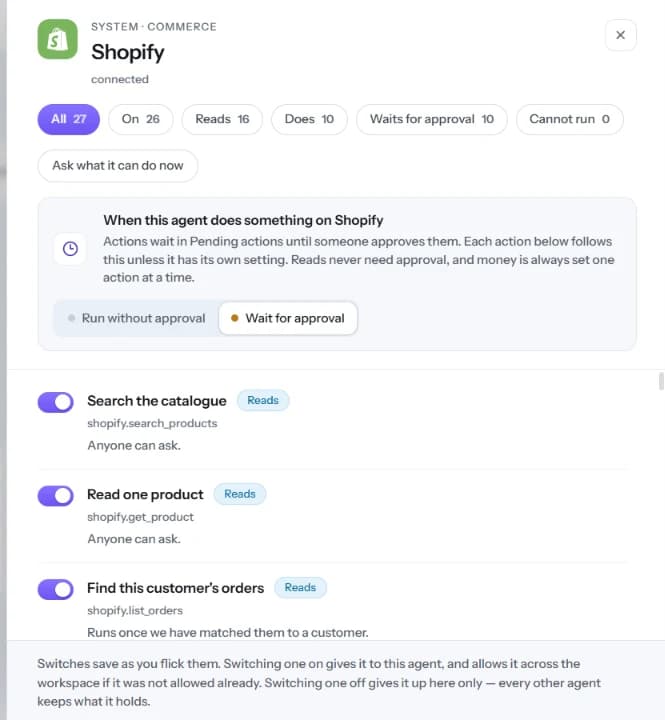
- 1In your agent's left sidebar, click Actions. Under Commerce, find the Shopify card. It shows how many actions are on, how many are Reads or Does, and how many wait for approval.
- 2Click the card. A panel slides in from the right.
- 3Use the filters (All, On, Reads, Does, Waits for approval, Cannot run) to narrow the list. Ask what it can do now checks what the agent can do at this moment.
- 4Under When this agent does something on Shopify, choose Run without approval or Wait for approval. You can override this on an individual action where the panel offers it.
- 5Read each action's description, customer requirement and key before switching it on. Switches save as you change them.
Refunds
Refund an order moves money, so it is set one action at a time rather than by the Shopify-wide setting. Check it deliberately before turning it on.
- Reads run immediately and need no approval.
- Actions marked Matched customer run only after the customer's email or phone is matched to a customer.
- Actions marked Confirmed customer also need a verification code: the customer gets a 6-digit code by email, valid for 10 minutes and usable once. A newer code replaces an older one. Once the code is accepted, the customer may need to send one more message (for example “yes”) before the action is proposed.
- Actions that change something wait in Operations → Pending actions until a team member approves them.
- Approving in Pending actions can reload the Playground and reset its Test as email, so open Pending actions in a second browser tab while you test.
Result
You have chosen which Shopify actions are available and which changes wait for a person.
Step 6
Try it
Set Test as to the email address on the order before testing customer-specific requests. Start with a simple product lookup, then test a matched-customer request.
| Ask | What to check | Approval needed |
|---|---|---|
| “Show me ski wax products” | A product list. | No |
| “What's the status of order #<number>?” | The order status for the matched customer. | No |
| “I want to change the delivery address on order #<number> to <address>” | The agent asks for the emailed code; after the code and “yes”, a proposal appears. | Yes, in Pending actions |
| “I want to cancel order #<number>” (unpaid, unfulfilled order) | The same code and proposal flow. | Yes, in Pending actions |
| “I want to return <item> from order #<number>” (fulfilled order) | The agent asks for the return reason. | Yes, in Pending actions |
| “Prepare a basket with 1 <product>” | A basket proposal. | Yes, in Pending actions |
- 1Open your agent's Playground.
- 2Ask “Do you have this product in stock?” to test a product lookup.
- 3Then ask “Where is my order?” or “Can you help me return this item?”. To test approvals safely, use a test order and a reversible change where possible.
- 4If the action waits for approval, the agent should not complete the change until someone reviews it in Operations → Pending actions.
- 5Check the final result in Shopify itself, not only the chat reply. If calls cannot reach the store, use Health → Test connection on the Shopify page.
Result
Your agent answers product and order questions from Shopify, and changes wait for your team where you chose approval.
Step 7
Review pending approvals
You do not approve requests on Integrations. Integrations connects Shopify, Actions sets what can run and whether it waits, and Operations is where your team handles an action that is waiting.
- 1In the left sidebar, expand Operations and open Pending actions. In your Shopify admin, the same requests are on Cevanos's Approvals page.
- 2Open the pending Shopify request. Check what the customer asked for, which Shopify action will be called, and which record, product, order or amount it affects.
- 3Check the customer's identity, the order details and your refund and cancellation policy. Do not approve a request just because the AI suggested it.
- 4Approve only when the request is correct and authorized; reject it if it is unsafe, incorrect or missing information.
- 5Check the real order, return or refund in Shopify. If something failed, investigate instead of telling the customer the change succeeded.
Example
A customer asks to cancel an unpaid order. The agent identifies the customer, checks eligibility and submits the action. If it is set to Wait for approval, a team member reviews it in Operations before it runs.
Result
Every Shopify change that waits for approval is checked by a person before it reaches your store.
Reference
What Shopify can do
Shopify supplies 26 capabilities: 15 reads, 10 that change something and 1 that moves money.
26 capabilities · 15 reads · 11 that change something
- Anyone can ask
Search the catalogue
shopify.search_products - Anyone can ask
Read one product
shopify.get_product - Anyone can ask
Check stock
shopify.check_inventory - Anyone can ask
Read a product's sizes and colours
shopify.list_variants - Anyone can ask
List collections
shopify.list_collections - Anyone can ask
Browse a collection
shopify.browse_collection - Anyone can ask
Check a discount code
shopify.check_discount - Anyone can ask
Read a cart
shopify.get_cart - Anyone can ask
Read a checkout
shopify.get_checkout - Matched customer
Find this customer's orders
shopify.list_orders - Matched customer
Read one order
shopify.get_order - Matched customer
Read an order's shipping and tracking
shopify.get_order_fulfillments - Matched customer
Find this customer
shopify.find_customer - Matched customer
Read this customer's record
shopify.get_customer - Matched customer
Check what's in a prepared basket
shopify.get_draft_order
- Anyone can ask
Make a cart
shopify.create_cart - Anyone can ask
Change a cart
shopify.update_cart - Anyone can ask
Cancel a cart
shopify.cancel_cart - Anyone can ask
Start a checkout
shopify.create_checkout - Anyone can ask
Change a checkout
shopify.update_checkout - Anyone can ask
Cancel a checkout
shopify.cancel_checkout - Matched customer
Prepare a basket
shopify.create_draft_order - Matched customer
Request a return for an item
shopify.request_return - Confirmed customer
Change an order's delivery address
shopify.update_order_address - Confirmed customer
Cancel an unpaid order
shopify.cancel_order
- Confirmed customer
Refund an order
shopify.refund_order
Field mapping
The Shopify fields Cevanos reads, and what each is called in Cevanos. The list on the Shopify page continues with more fields, such as product titles.
| In Shopify | In Cevanos |
|---|---|
| order.name | Order reference |
| order.email | Contact email |
| order.financial_status | Whether it is paid |
| order.fulfillment_status | Whether it has shipped |
| order.total_price | Order total |
| order.total_price.currency_code | Order currency |
| order.total_refunded | Refunded so far |
| (derived) | Still refundable |
| order.fulfillments.delivered_at | When it arrived |
| customer.email | Contact email |
| customer.first_name | Contact first name |
Good to know
- A basket is a Shopify draft order and appears under Orders → Drafts. A cart is a storefront cart and does not appear in Shopify admin.
- Cart and checkout actions only work on a cart made in the same conversation.
- A real checkout link contains /checkouts/. A link containing /invoices/ is a basket payment link.
- The order's email must match the customer's email. Only orders from the last 60 days are visible.
- A return needs a fulfilled order.
Good to know
Refund an order is off by default, and the agent hands refund requests to a person.
Troubleshooting
| Problem | What to check |
|---|---|
| Shopify still says Available | Install Cevanos from the Shopify App Store, then open it in your Shopify admin and finish Connect with Cevanos. If Home says Choose a plan, the store connects once the plan is confirmed. |
| “Only the store owner … can connect this store” | Ask the store owner, or staff with every permission the app uses, to connect the store. Once it is connected, you can link your own account from Home. |
| “This store is connected to another Cevanos workspace” | A store connects to one workspace. Someone in the workspace that holds it disconnects it first, or you link your account to that workspace instead. |
| Connected, but the agent cannot use Shopify | Open Choose what it can do, check that both Workspace and This agent are ticked for that capability, and save. |
| The agent cannot show an order | Order actions need customer matching. Check that the agent has identified the right customer, that the order's email matches, and that the order is from the last 60 days. Do not turn off that safeguard. |
| Nothing appears in Pending actions | Check that the action is on, that it was actually invoked, and that it is set to Wait for approval. Some requests are stopped by Governance before they reach approval. |
| Connection test fails | Use Health → Test connection and check that Shopify access has not been revoked. A Connected badge alone does not prove each action will succeed. |
Optional
Disconnect Shopify
- 1Open the Shopify page and scroll to the red Disconnect box. Click Disconnect Shopify.
- 2A pop-up asks “Disconnect Shopify?”. It lists the agents affected and which capabilities stop working for each one.
- 3Click Yes, disconnect to continue, or Cancel to keep it connected.
- 4The Shopify card goes back to Available. To connect again, open Cevanos in your Shopify admin and repeat Step 2.
- 5To fully revoke access, open Shopify admin → Settings → Apps and sales channels, find the Cevanos app and choose Uninstall.
Changing permissions
When Cevanos needs a new permission, Shopify asks the store owner to approve it in the Shopify admin. Your capability settings are kept.
Your data stays
Disconnecting removes Cevanos's access, and uninstalling the app does not delete products, orders or customers.
Ready to connect Shopify?
Open your agent's Integrations and click Connect on the Shopify card.