



Overview
Front is a shared-inbox helpdesk. Once Front is connected to Cevanos, your AI agent can work inside the one shared inbox you pick: it can read conversations, contacts and messages, and it can write to conversations and send messages.
Unlike a Custom Action, you do not define the actions yourself. Cevanos supplies them, and you choose which ones your agent gets.
The journey at a glance
- 1Find FrontOpen Integrations, search for Front and click Connect.
- 2Connect FrontType the inbox name, sign in to Front and click Authorize.
- 3Check the Front pageSee the Connected status, field mapping, activity and health.
- 4Choose what it can doTick Workspace and This agent, then Save capabilities.
- 5Set approvals on ActionsCheck what can run and which actions wait for approval.
- 6Try itTest in the Playground with a customer question.
Before you start
You need two things:
- A Front account you can sign in to.
- The name of the one shared inbox the agent should use.
No API key
There is nothing to register and nothing to paste. Front uses a sign-in and approve screen.
Step 1
Find Front
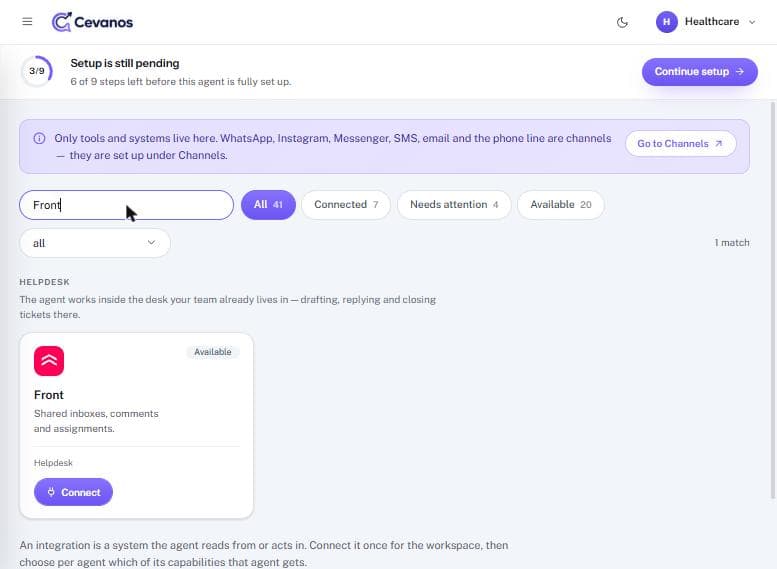
- 1In the Cevanos dashboard, open your agent and click Integrations in the left sidebar.
- 2Type Front in the search box, or look under the Helpdesk section.
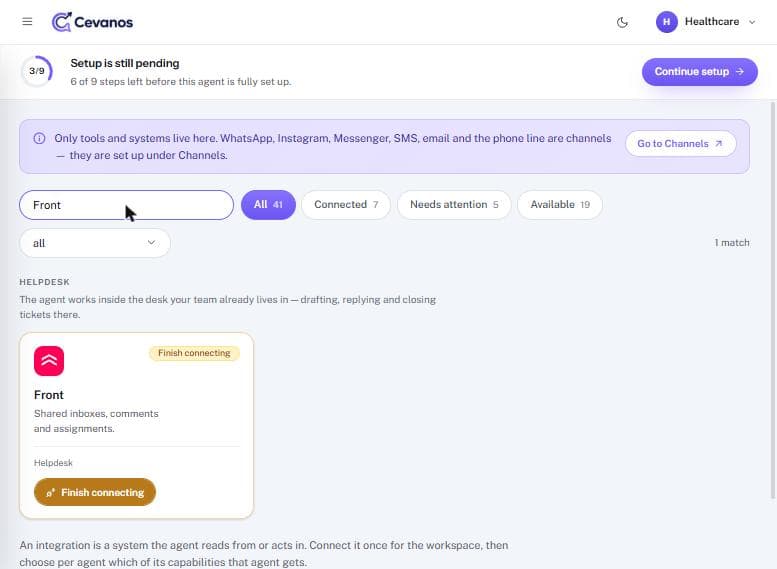
- 3Check the badge on the card. Available means it is not connected yet.
Result
You are ready to connect. Click Connect to start the next step.
Step 2
Connect Front
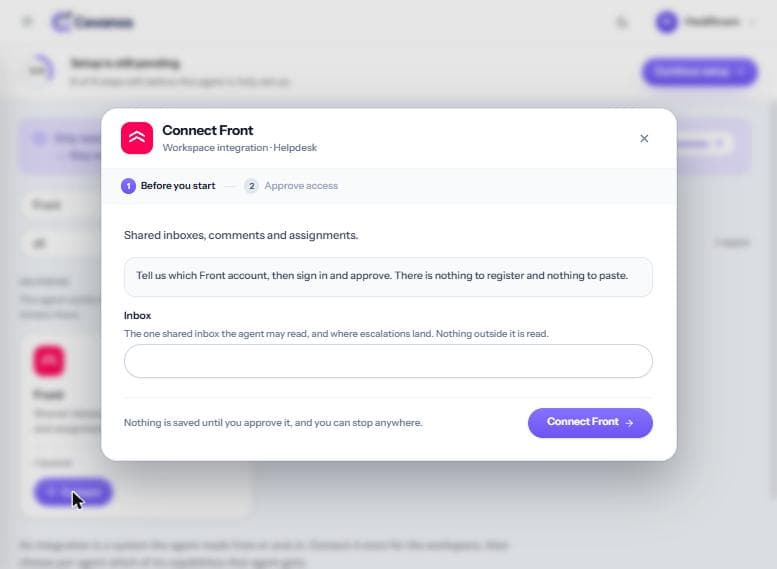
Connecting is done once for the whole workspace. The pop-up has two screens, Before you start and Approve access. The approval itself happens on Front's own page.
2a. Before you start
- 1Click Connect on the Front card. The Connect Front pop-up opens.
- 2Inbox: type the one shared inbox the agent may read. This is also where escalations land. Nothing outside this inbox is read.
- 3Click Connect Front.
Nothing is saved yet
Nothing is saved until you approve access, and you can stop anywhere.
2b. Approve access in Front
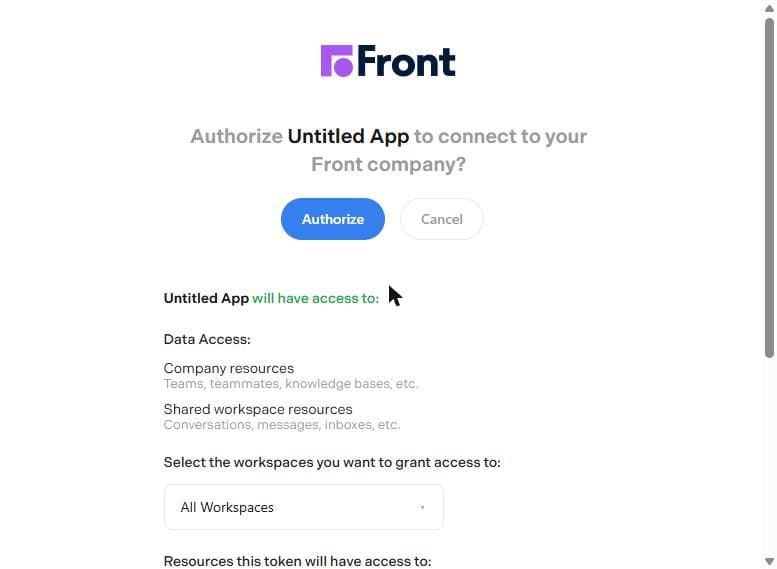
Cevanos sends you to Front's own page. It lists exactly what will be shared before you agree.
- 1Sign in to Front if it asks you to.
- 2Read will have access to: company resources (teams, teammates, knowledge bases) and shared workspace resources (conversations, messages, inboxes).
- 3Under Select the workspaces you want to grant access to, leave All Workspaces or pick the ones you need.
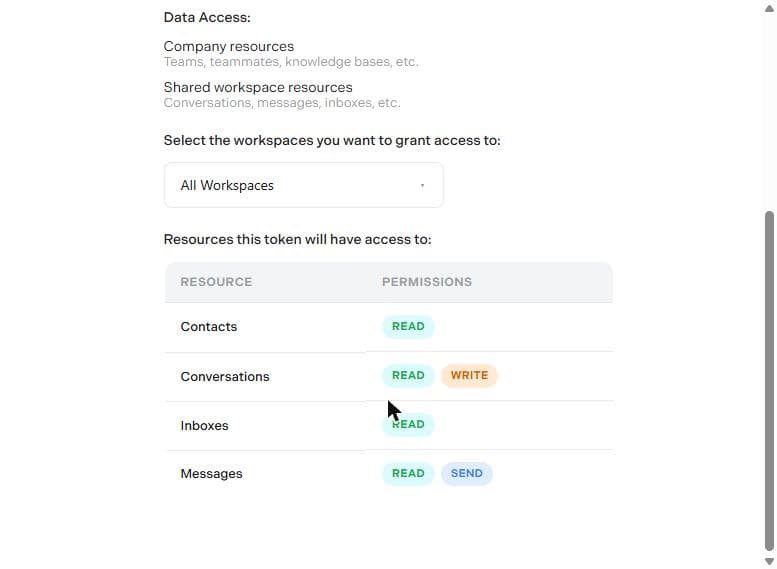
- 4Scroll down to Resources this token will have access to and check the permissions.
- 5Click Authorize to approve, or Cancel to stop.
2c. Connected
- After you click Authorize, Front sends you back to Cevanos and the pop-up says that Front is connected.
- If you connected Front before, a box may offer to switch its previous capabilities back on. Click Switch them on to restore them, or skip it.
- Click Choose what it can do to go straight to the next step, or Back to integrations to leave.
Result
Front is connected for the workspace, but nothing it can do is switched on yet.
Step 3
Check the Front page
Back on the Integrations page, the Front card now says Connected. Click the card to open the Front page.
- 1Read the header: the status, the category (Helpdesk) and the Choose what it can do button.
- 2Field mapping lists the fields Cevanos is allowed to read. If a field is not listed, it is never read.
- 3Activity shows the calls the agent has made, kept for 30 days. It says “Nothing has run yet” on a fresh connection.
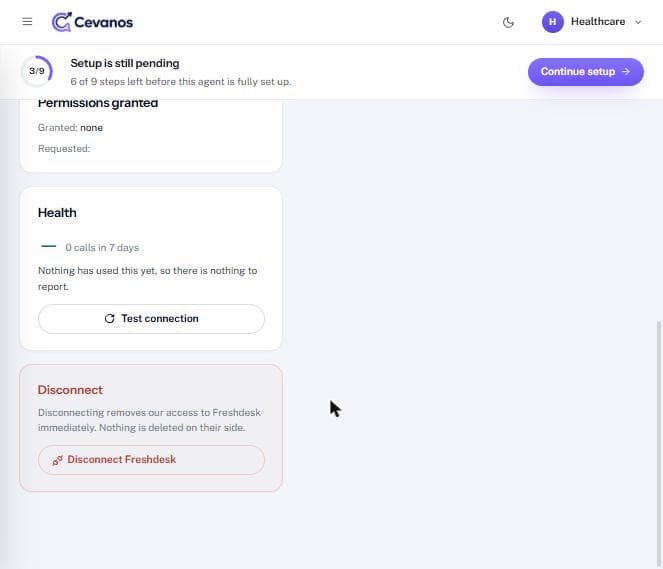
- 4Scroll down to see Connected, Permissions granted, Health and the Test connection button.
Finish connecting
Until the approval is finished, the card says “Finish connecting” and the Front page says “Front is not connected”, with a Connect Front button. Click it to start again.
Result
You can confirm Front is connected. Use Test connection at any time to check that Cevanos can still reach Front.
Step 4
Choose what it can do
Click Choose what it can do on the Front card or page. A pop-up lists the capabilities. Each row has two checkboxes: Workspace and This agent.
- 1Workspace: tick it for each capability Front is allowed to supply at all. This applies to every agent in the workspace.
- 2This agent: tick it for each capability this agent should use.
- 3Tick or untick under Reads (look something up) and Does (change something).
- 4Click Save capabilities, or Cancel to leave without changes.
Result
The capabilities you ticked in both columns can now run. If you leave Workspace unticked, the next step shows them as stopped by your administrator.
Step 5
Set approvals on Actions
Open Actions, then the Helpdesk section, and click the Front card. The panel lists the actions, with a filter and an approval setting. Choose Wait for approval for any action that changes something, so a person confirms it before it runs.
Result
You know which Front actions can run, which wait for approval, and which are stopped.
Step 6
Try it
- 1Open the Playground for your agent.
- 2Make sure the conversation has a matched customer if the actions need one.
- 3Ask something that should make the agent look in your Front inbox, for example “Where is my last request?”.
- 4For an action that changes something, check the Pending actions list if you chose “Wait for approval”.
- 5Back on the Front page, the Activity table shows each call and its result.
Reference
What Front can do
Cevanos supplies Front's capabilities; you see each one under Reads or Does in Choose what it can do. They work only inside the one shared inbox you connected. This is what Cevanos asks Front for when you connect:
| Resource | Permissions requested |
|---|---|
| Contacts | Read |
| Conversations | Read, Write |
| Inboxes | Read |
| Messages | Read, Send |
Troubleshooting
| Problem | What to check |
|---|---|
| The card says “Finish connecting” | The approval in Front was not finished. Open the Front page and click Connect Front to start again. |
| The agent cannot use a Front action | Check Workspace and This agent are both ticked in Choose what it can do, and that the action is on in Actions. |
| Cevanos cannot reach Front | Use Test connection on the Front page. If it fails, disconnect and connect again. |
Optional
Disconnect Front
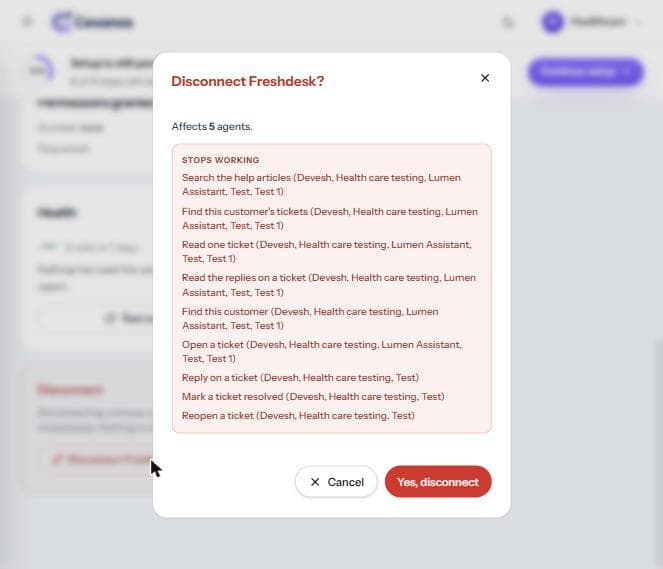
- 1Open the Front page and scroll to the red Disconnect box. Click Disconnect Front.
- 2A pop-up asks “Disconnect Front?”. It lists how many agents are affected and which capabilities stop working for each one.
- 3Click Yes, disconnect to continue, or Cancel to keep it connected.
- 4The Front card goes back to Available with a Connect button. Repeat Step 2 to connect again.
Ready to connect Front?
Open your agent's Integrations and click Connect on the Front card.