



Overview
Mailchimp lets your agent answer subscription questions: whether a customer is on an audience, which mailings they receive and their recent activity.
It also helps your agent respect customer choices: it can handle opt-outs and supported marketing-interest changes, with the right authorisation.
The journey at a glance
- 1Find MailchimpOpen Integrations, search for Mailchimp and click Connect.
- 2Connect MailchimpPaste the API key and click Verify & connect.
- 3Check the Mailchimp pageConfirm Connected, then use Test connection.
- 4Set up Actions and approvalsSwitch on the Mailchimp actions and set their approval.
- 5Try itAsk about subscriptions in the Playground, then try a change.
- 6Review pending approvalsApprove or reject the request in Governance → Approval Queue.
Before you start
You need:
- A Mailchimp account with permission to create an API key.
- A Mailchimp API key, including its data-centre suffix.
- Optional: the audience IDs for approved newsletter signups, but only if you have a verified consent process.
| Field in Cevanos | What to enter |
|---|---|
| API key | Required. The complete Mailchimp API key, including its suffix (for example, -us6). |
| Approved signup audience IDs | Optional. Comma-separated audience IDs where approved, verified newsletter signup is allowed. |
| Consent receipt verification secret | Optional. A secret from your own trusted consent form. Do not enter your Mailchimp API key here. |
Create an API key in Mailchimp
- 1Sign in to Mailchimp and open your profile menu.
- 2Choose Profile, then Extras → API keys.
- 3Click Create A Key, give it a name you will recognise and generate it.
- 4Copy the full key straight away, including the suffix such as -us6, and keep it somewhere secure. Mailchimp does not show the full key again after you leave the page.
Find an audience ID (optional)
- 1In Mailchimp, open Audience and select the audience you want.
- 2Open More options → Audience settings.
- 3Copy the Audience ID. Repeat for each audience you want to allow for verified signup.
- 4Enter the IDs as a comma-separated list only if you have the required consent flow. Leave the field blank to keep newsletter signup off.
The consent verification secret (optional)
- This value does not come from Mailchimp. It belongs to your own authenticated signup or consent form.
- Enter it only when that form issues verifiable consent receipts. Ask whoever built the form for its verification secret.
- If you have not set up that process, leave both optional signup fields blank. The agent can still use the other Mailchimp actions.
Step 1
Find Mailchimp
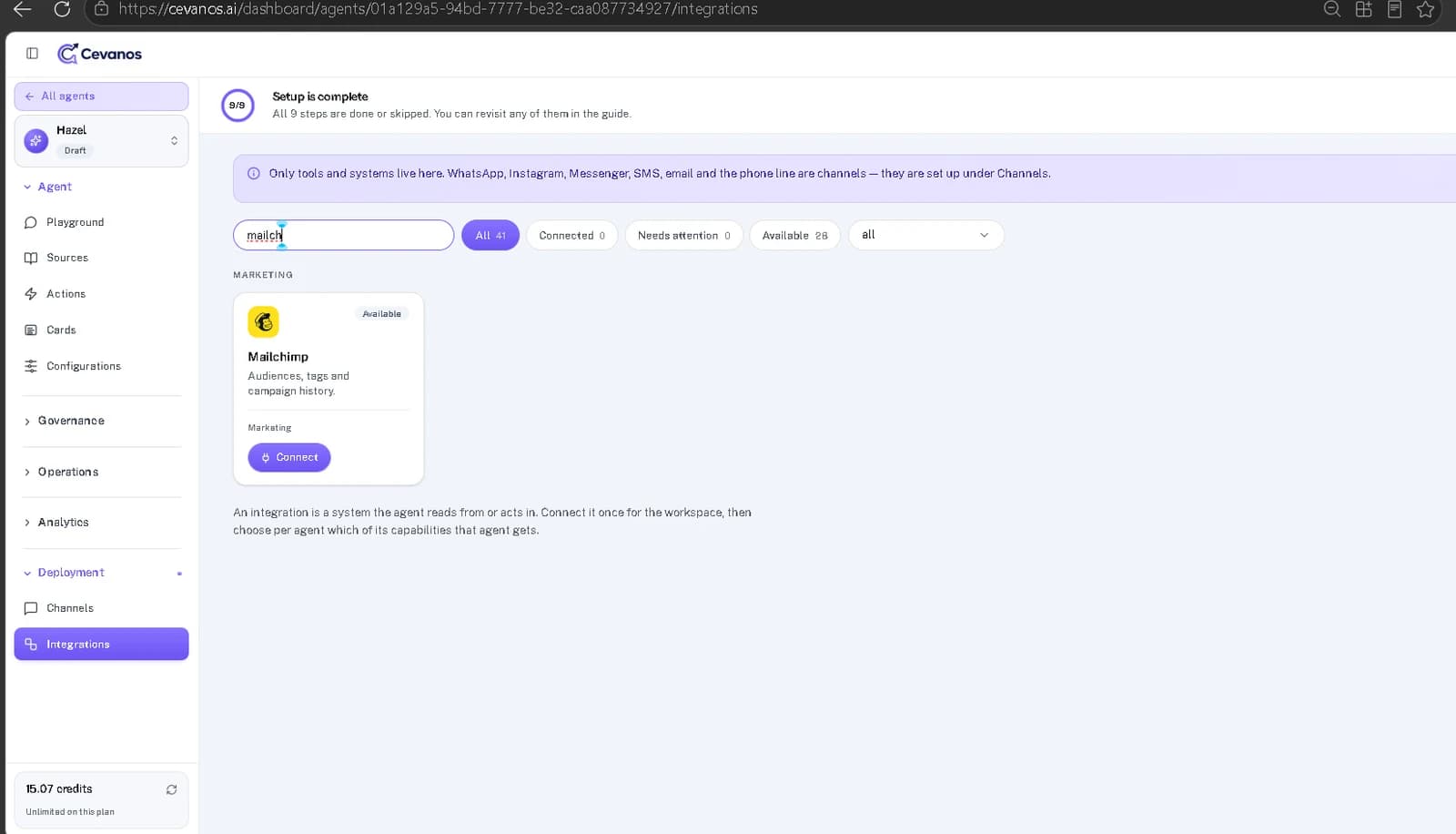
- 1In Cevanos, go to Agents and select the agent you want to set up.
- 2Under Deployment, open Integrations.
- 3Type Mailchimp in the search box, or look under Marketing.
- 4Click Connect on the Mailchimp card.
Result
The Connect Mailchimp pop-up opens.
Step 2
Connect Mailchimp
2a. Before you start
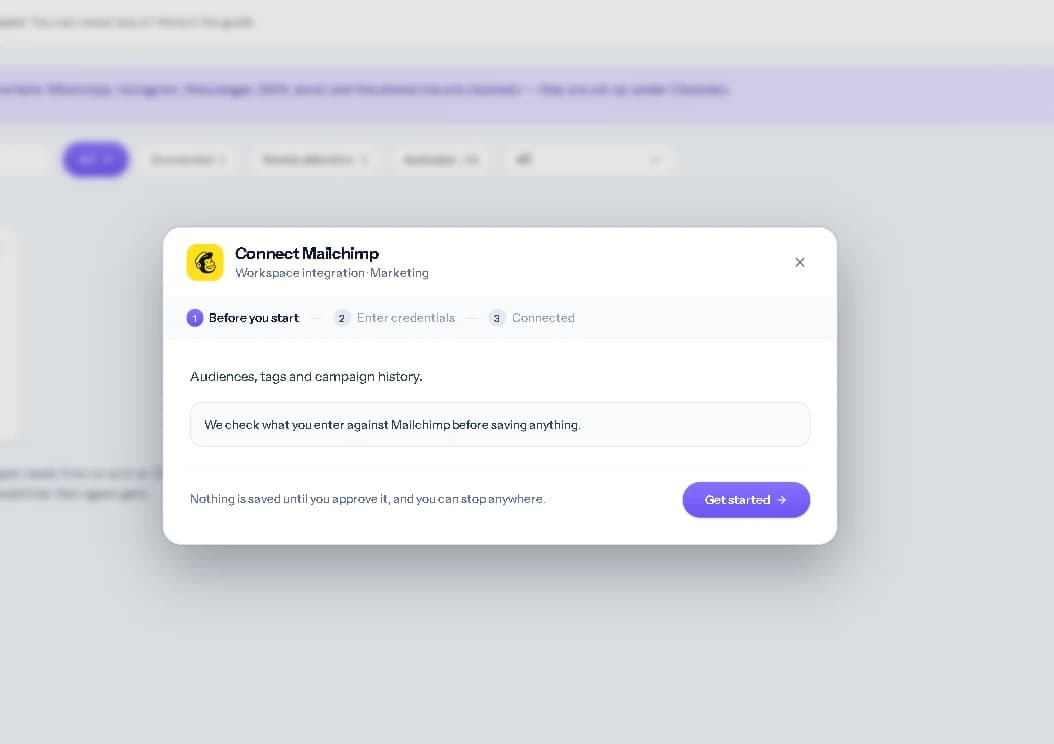
The first screen explains that Cevanos checks what you enter against Mailchimp before it saves anything. Click Get started.
2b. Enter the API key
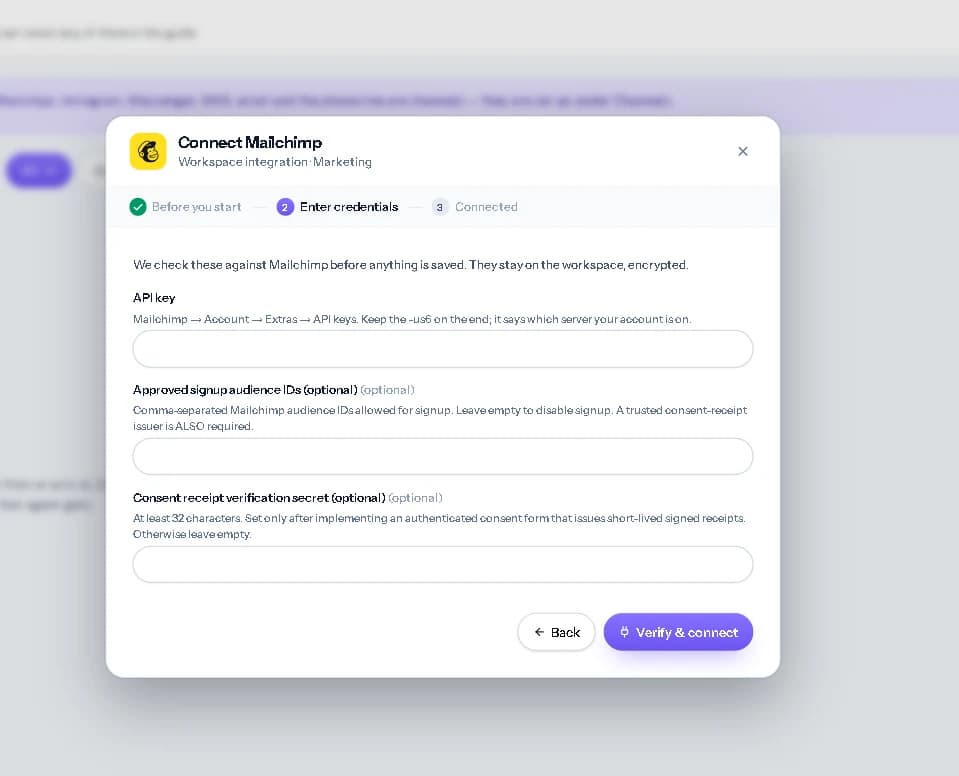
- 1Paste the full key into API key.
- 2If your organisation has a verified signup form, you can also enter its Approved signup audience IDs and Consent receipt verification secret. Otherwise leave them blank.
- 3Click Verify & connect.
2c. Connected
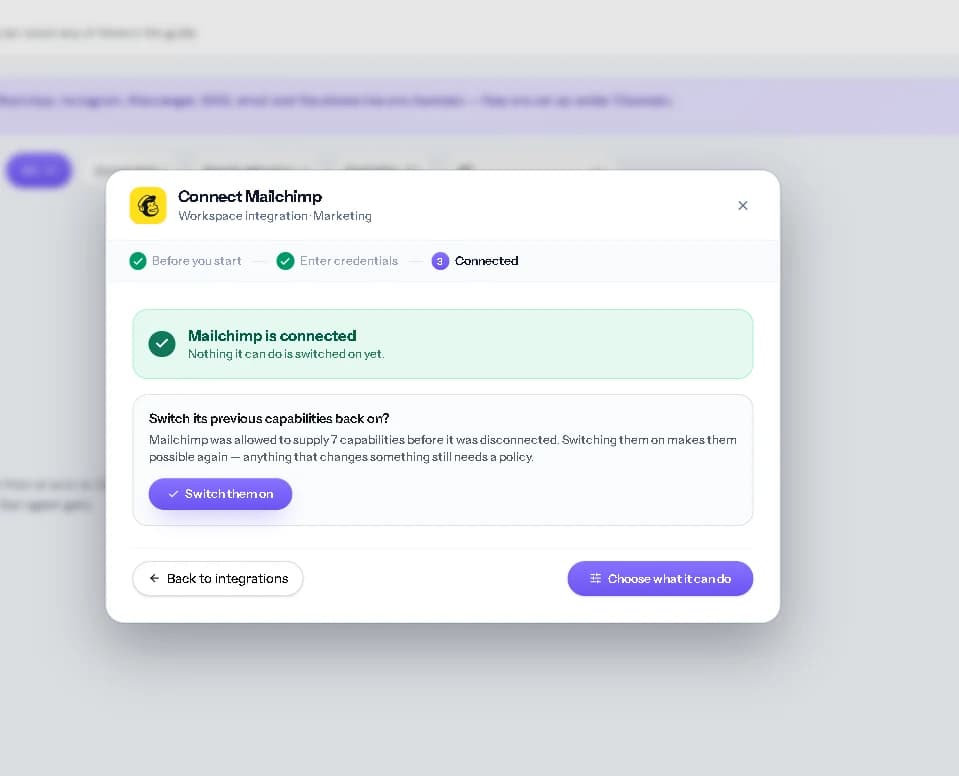
The pop-up says “Mailchimp is connected”.
Result
Mailchimp is connected for the workspace. No action is switched on for your agent yet.
Step 3
Check the Mailchimp page
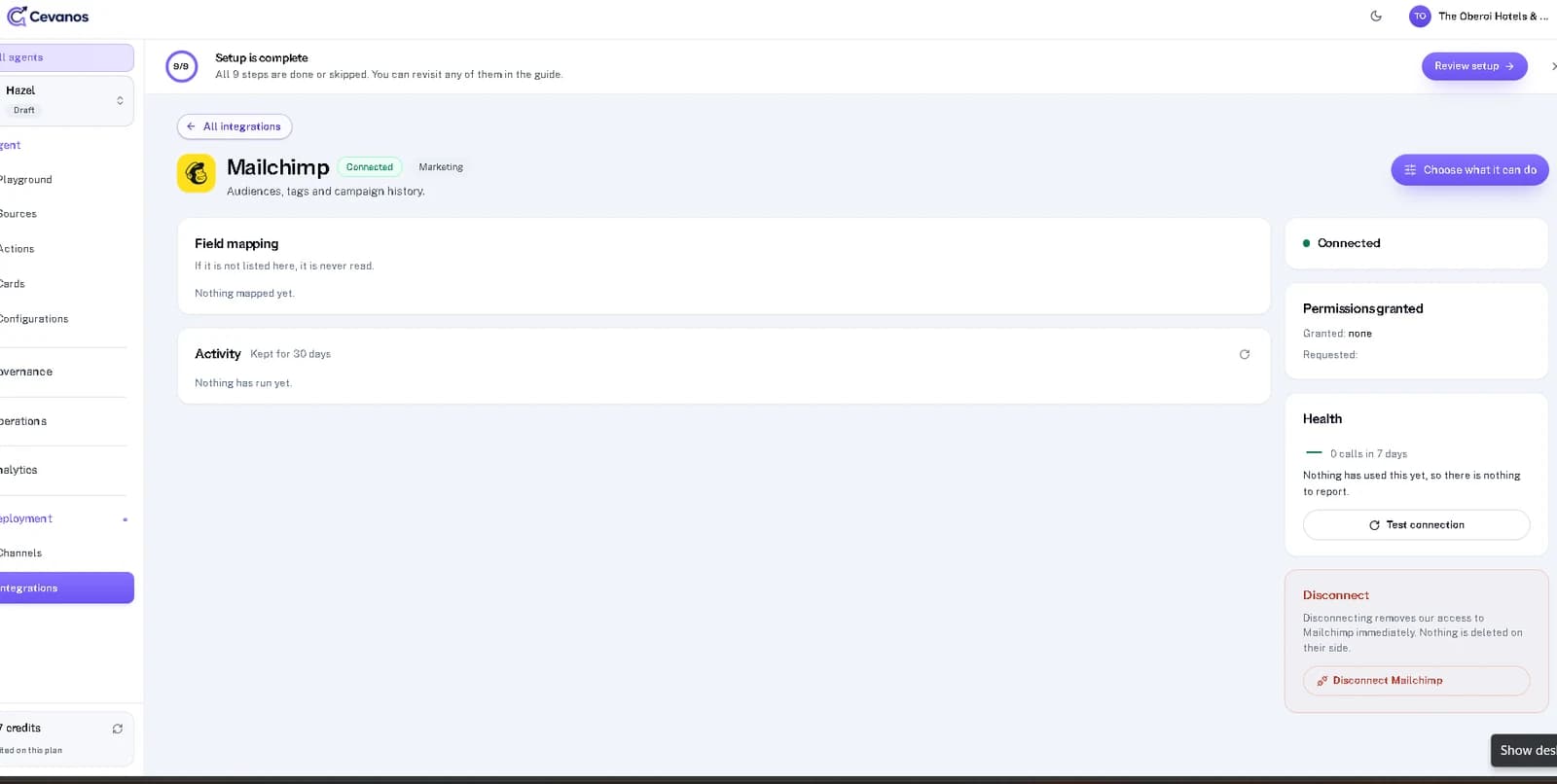
- 1Go to Deployment → Integrations and select the connected Mailchimp card.
- 2Check the connection details and status.
- 3Click Test connection whenever you want to check that access still works.
Result
You can confirm Mailchimp is connected and reachable.
Step 4
Set up Actions and approvals
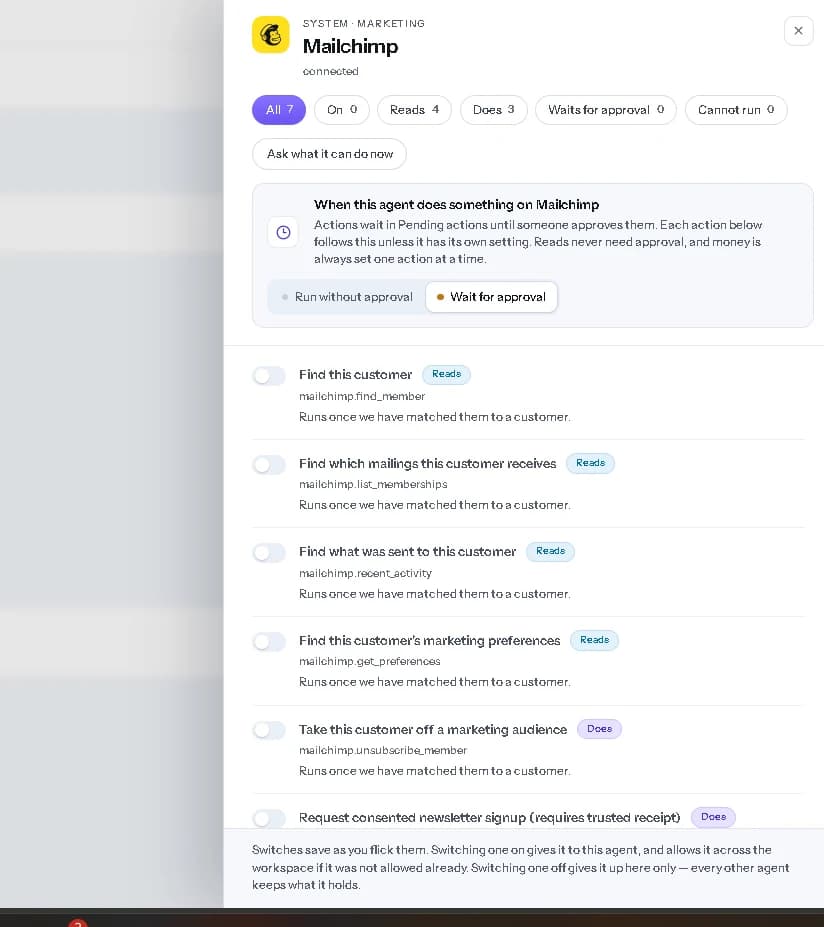
- 1In your agent, open the Actions tab.
- 2Find the Mailchimp card and open it.
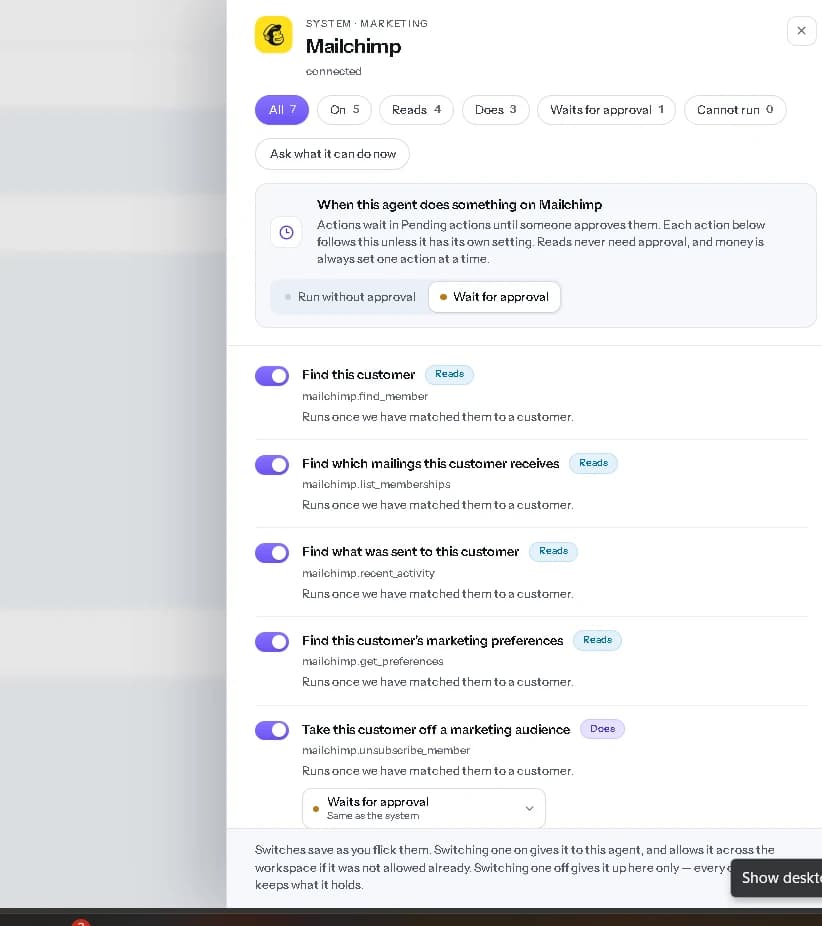
- 3Turn on the actions this agent should use. Each switch saves as you change it.
- 4Review the approval setting for any action that changes something in Mailchimp.
Per agent
Connecting Mailchimp does not give every agent every action. You decide which actions each agent can use.
Choose when an action needs approval
- Run without approval: when the agent has enough information and the request passes the checks, it carries out the action without waiting for a team member. This does not override an active Governance policy.
- Wait for approval: the agent prepares the action but does not carry it out. A team member with approval access approves or declines it. Waiting actions appear in Pending actions; requests a policy controls can also appear in Governance → Approval Queue.
- Set one action differently: the Mailchimp setting applies to all its actions by default. On a single change action, choose Same as the system, Run without approval or Wait for approval. Reads need no approval setting.
Result
You know which Mailchimp actions this agent can run, and which ones wait for approval.
Step 5
Try it
- 1Open the agent's Playground.
- 2To test anything personal, use a test customer who exists in your Mailchimp account.
- 3Ask a question that uses a read first.
- 4For a change, check whether it ran, needs the customer to confirm, or is waiting for approval.
- 5Check the outcome in Mailchimp before you treat the change as done.
| Ask | What to check |
|---|---|
| “Which newsletters am I receiving?” | The agent finds the customer's memberships and preferences. Unsubscribing or changing interests is treated as a separate action. |
Result
Your agent answers subscription questions from Mailchimp, and any change shows up in Mailchimp.
Step 6
Review pending approvals
If Governance is set up for this agent, a policy may require approval even when an action is switched on or set to Run without approval.
- 1In the Playground, send a request that uses a switched-on action.
- 2If the result says Approval required, open Governance → Monitoring & Audits to see the decision and the policy that applied.
- 3Open Governance → Approval Queue, select Pending and click Review beside the request.
- 4An authorised reviewer approves or rejects it. For an operation with several steps, one approval can cover all the steps shown.
- 5After approval, check the execution status and the outcome in Mailchimp.
Approved is not done
Approval is not the same as success. Always check the result in Mailchimp.
Result
You have seen a request go through approval and confirmed the outcome in Mailchimp.
Reference
What Mailchimp can do
Mailchimp supplies seven actions: four reads and three that make changes. Each one can be switched on separately.
7 capabilities · 4 reads · 3 that change something
- Matched customer
Find this customer
Find the matched person's Mailchimp audience membership.
mailchimp.find_member - Matched customer
Find which mailings this customer receives
Check which audiences the person belongs to and their mailing status.
mailchimp.list_memberships - Matched customer
Find what was sent to this customer
Review the marketing activity recorded for that person.
mailchimp.recent_activity - Matched customer
Find this customer's marketing preferences
Read the marketing interests the customer can see.
mailchimp.get_preferences
- Matched customer
Take this customer off a marketing audience
Unsubscribe the matched customer from a chosen audience.
mailchimp.unsubscribe_member Request consented newsletter signup
Request a pending signup, only for an approved audience with a verified consent receipt. The customer must still confirm by email.
Change this customer's visible marketing interests
Update selected checkbox interests for a customer who is actively subscribed, with confirmation as required.
- Newsletter signup cannot be switched on with an audience ID alone; it also needs a trusted consent-receipt process.
- Customers who unsubscribed before must use a customer-controlled resubscription form. The agent does not get round a previous opt-out.
- The marketing-interest action supports visible checkbox groups, not every kind of Mailchimp group.
Troubleshooting
| Problem | What to check |
|---|---|
| Mailchimp says the API key is invalid | Create a fresh key and paste the complete value, including the region suffix. |
| Newsletter signup is unavailable | Check that the audience ID is approved and that your signup form issues a valid consent receipt. |
| The agent cannot update preferences | Check that the customer is actively subscribed and that the interest group uses checkboxes. |
Optional
Disconnect Mailchimp
- 1Go to Agents, select your agent, then Deployment → Integrations.
- 2Select the connected Mailchimp card.
- 3Use Disconnect to remove Cevanos's access to the account.
Your data stays
Disconnecting does not delete anything in Mailchimp.
Help from Mailchimp
Ready to connect Mailchimp?
Open your agent's Integrations and click Connect on the Mailchimp card.